01/Library
All your tones in one place
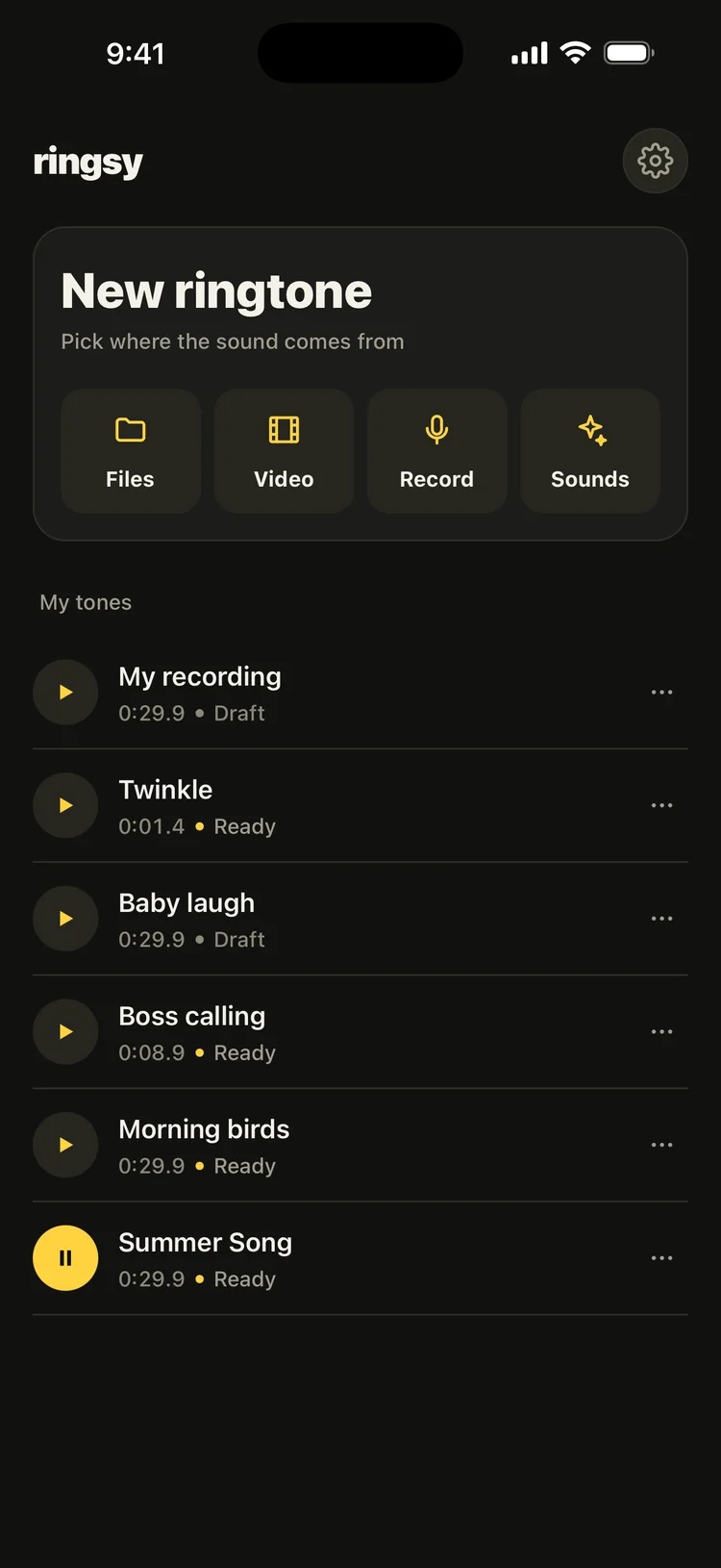
Four sources right on the home screen, and a library to replay, re-edit and set again any time.
- Files, Video, Record, built-in Sounds
- Preview straight from the list
- Rename, edit or delete from the ⋯ menu
A song from Files, the sound of a video, your own voice — or one of Ringsy’s original tones. Trim it, fade it, hear it ring as a call and set it in seconds, right on your iPhone.
Features
Ringsy does one thing, fast: from the sound you pick to a ringtone on your iPhone in under a minute.
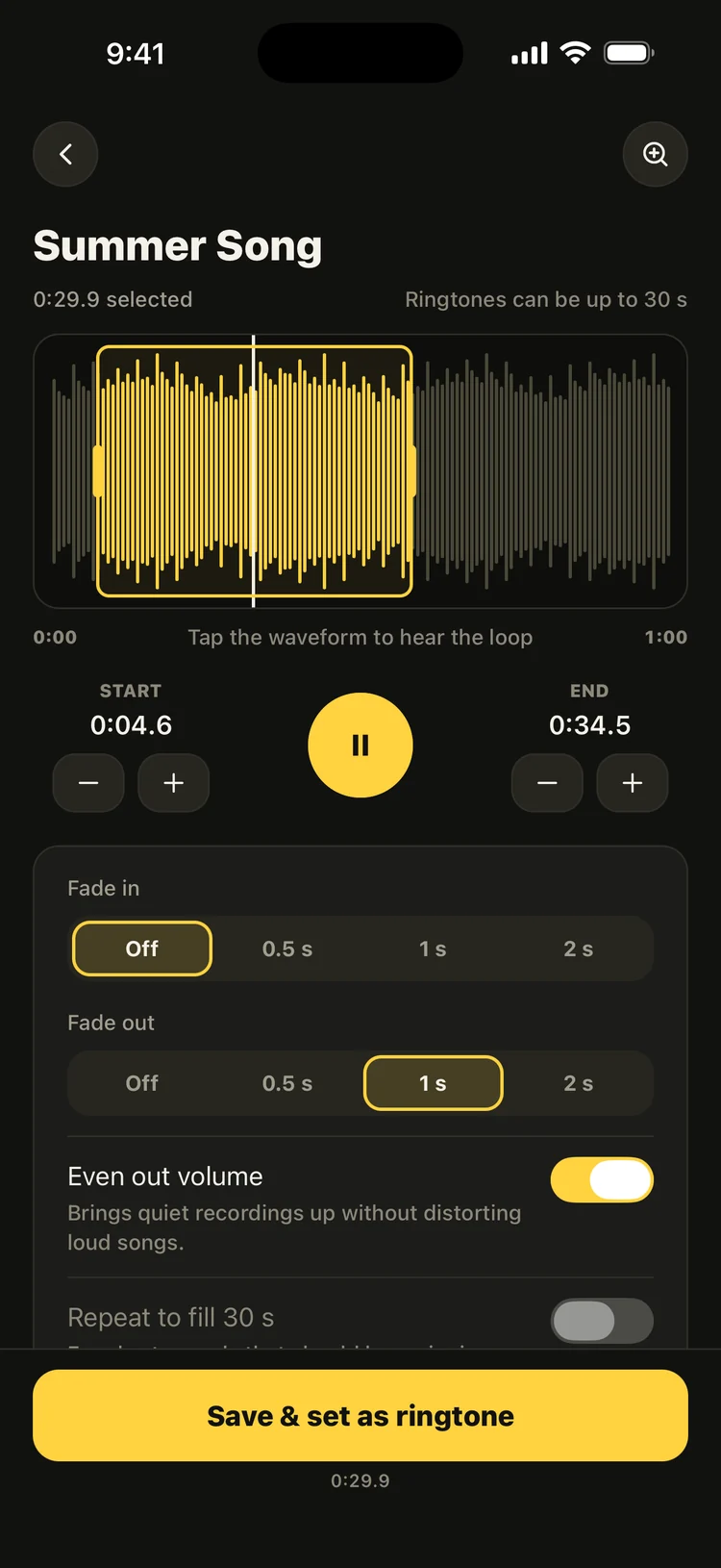
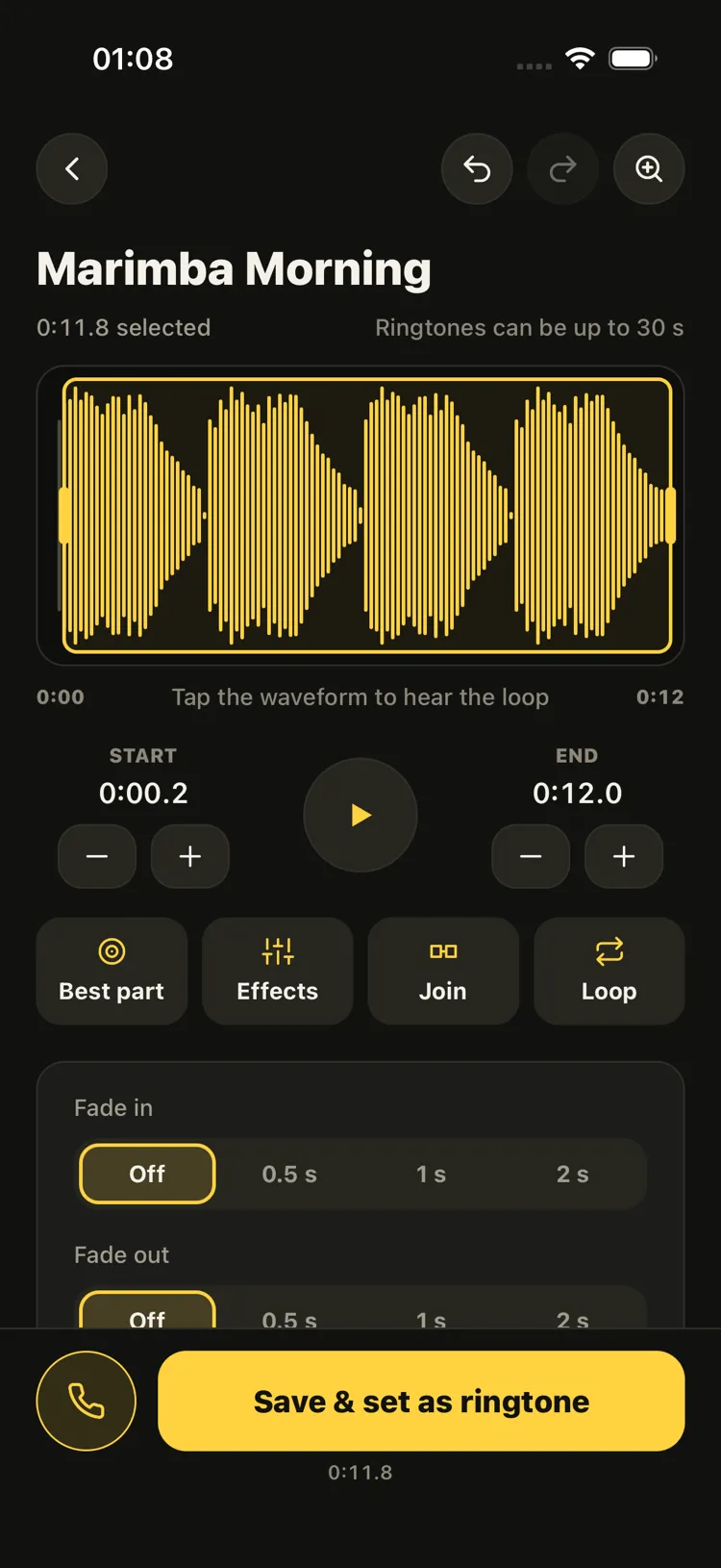
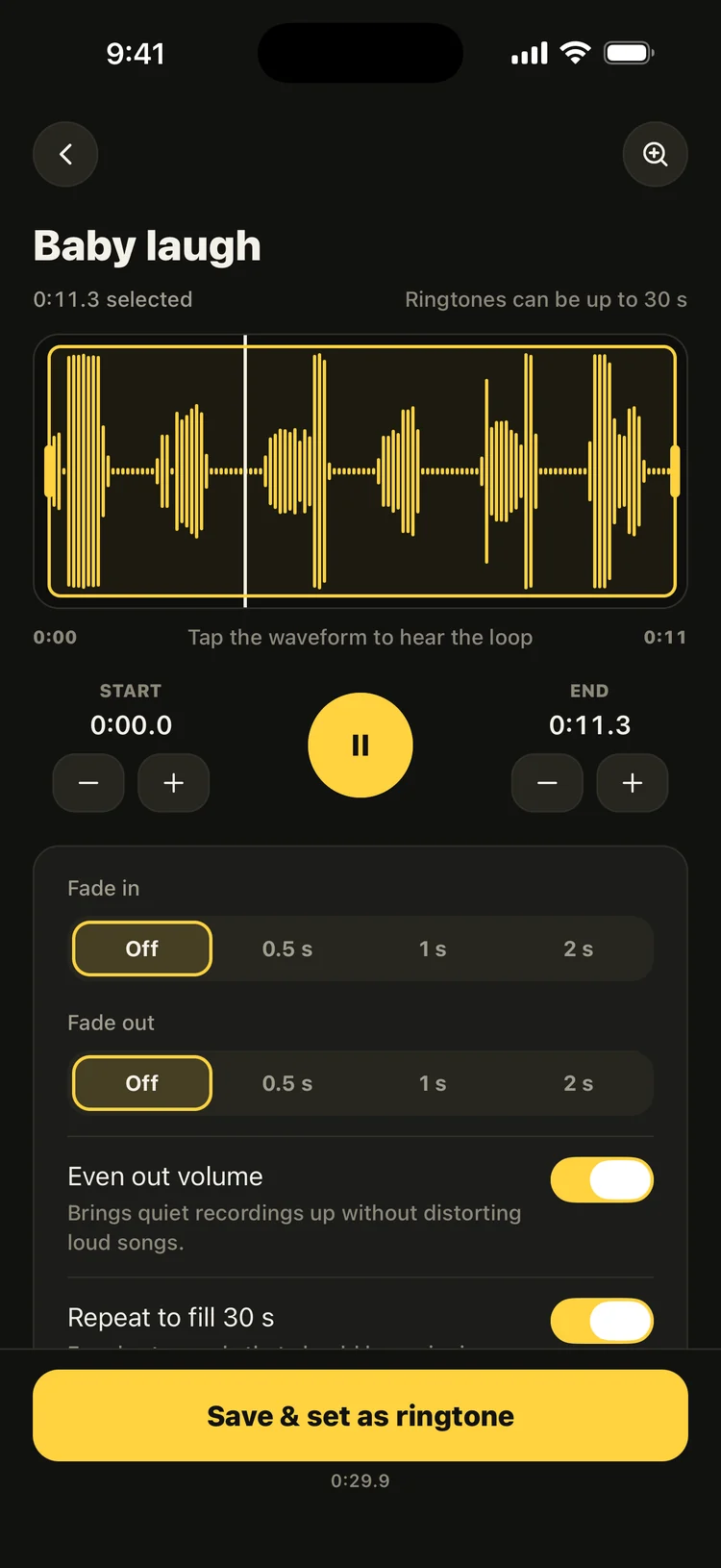
Drag the handles on the waveform, zoom in for precision, nudge by a tenth of a second and tap to hear the loop. Undo and Redo any change.
Fade in, fade out, and level the loudness — a quiet memo rings loud and a loud song never distorts.
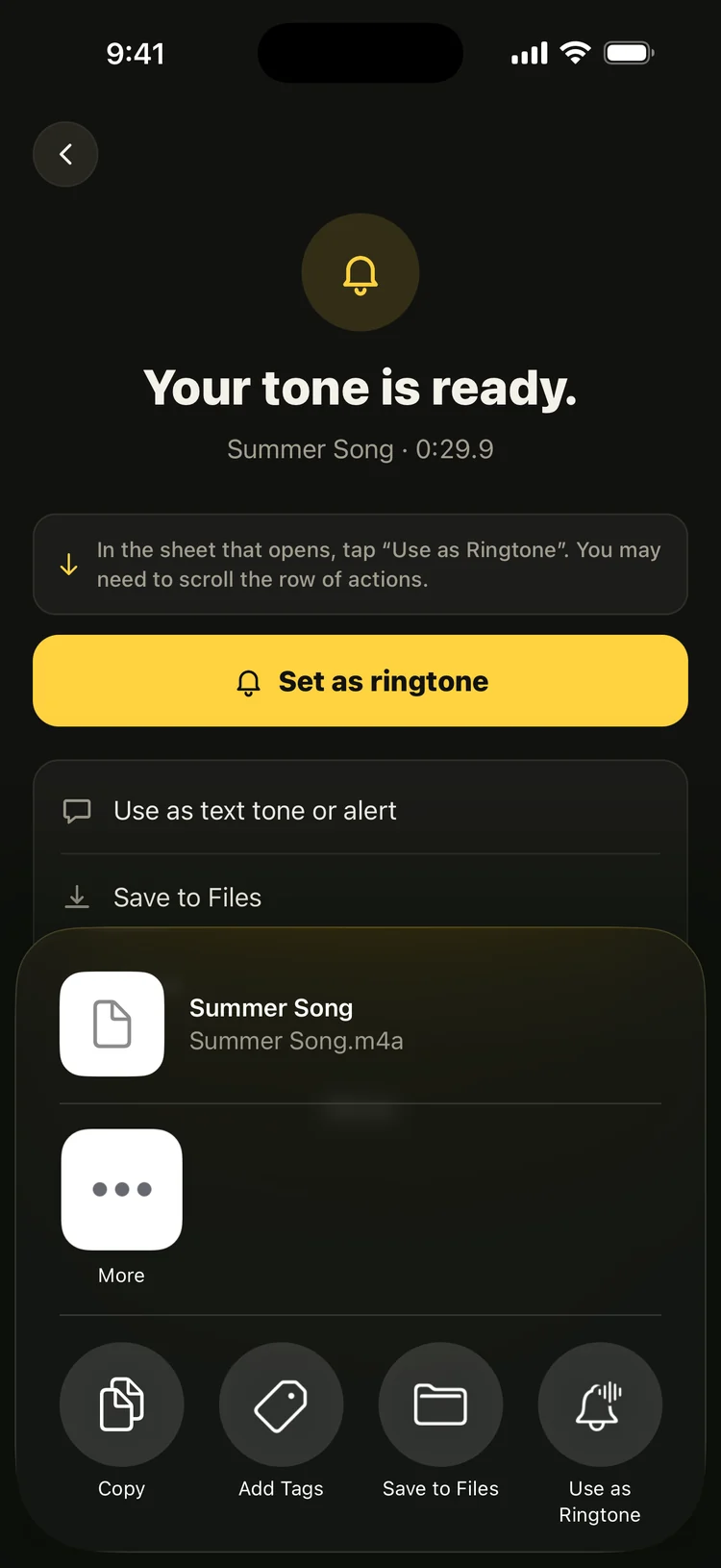
On iOS 26, tap “Set as ringtone” and choose “Use as Ringtone”. Earlier iOS versions get a step-by-step GarageBand guide.
Pull the sound out of any video in your Photos — a baby’s laugh, a moment from a trip.
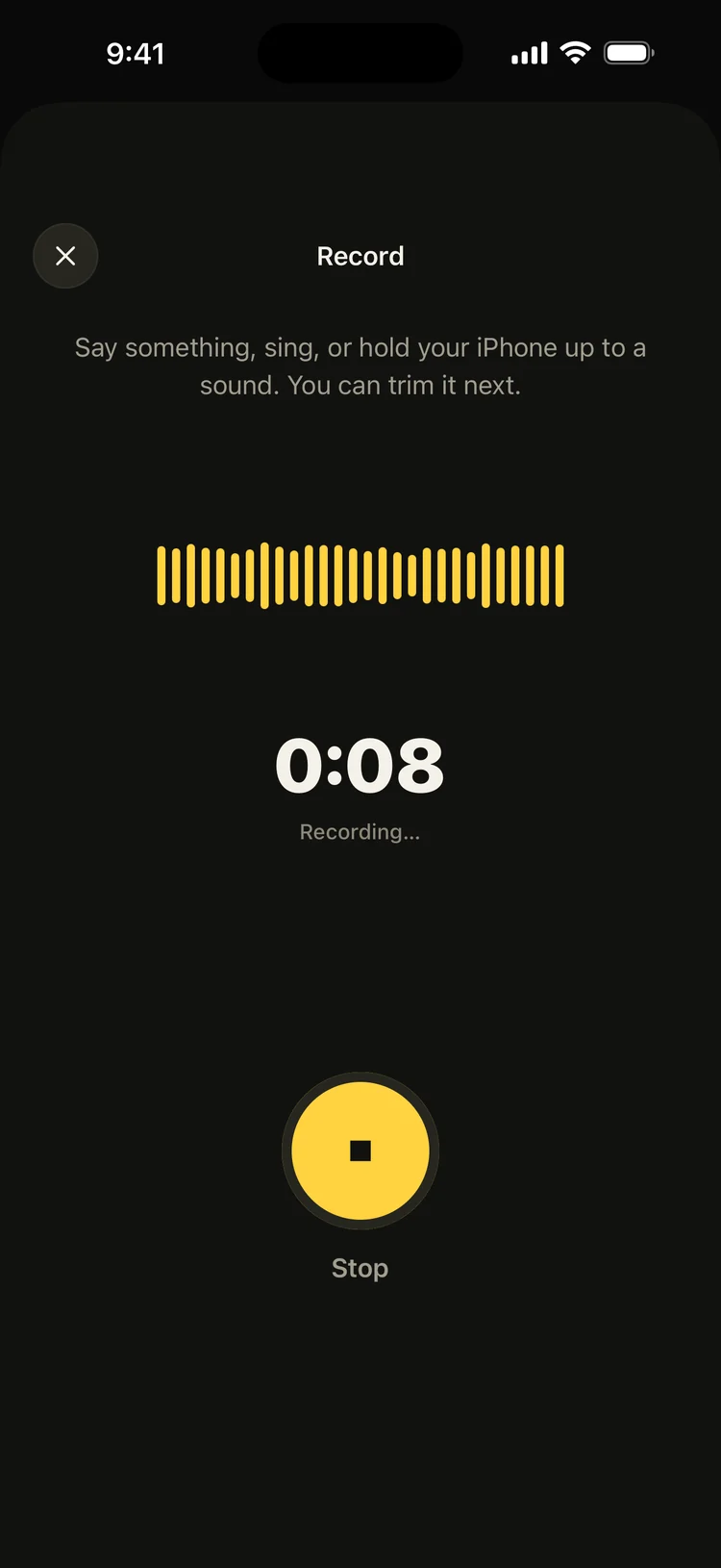
Your voice, your kid, your dog — record up to 60 seconds, then trim the best part.
A pack of ringtones and alerts made for Ringsy, free to use and yours to edit.
Use any tone for messages, reminders and mail — or for one person in your contacts.
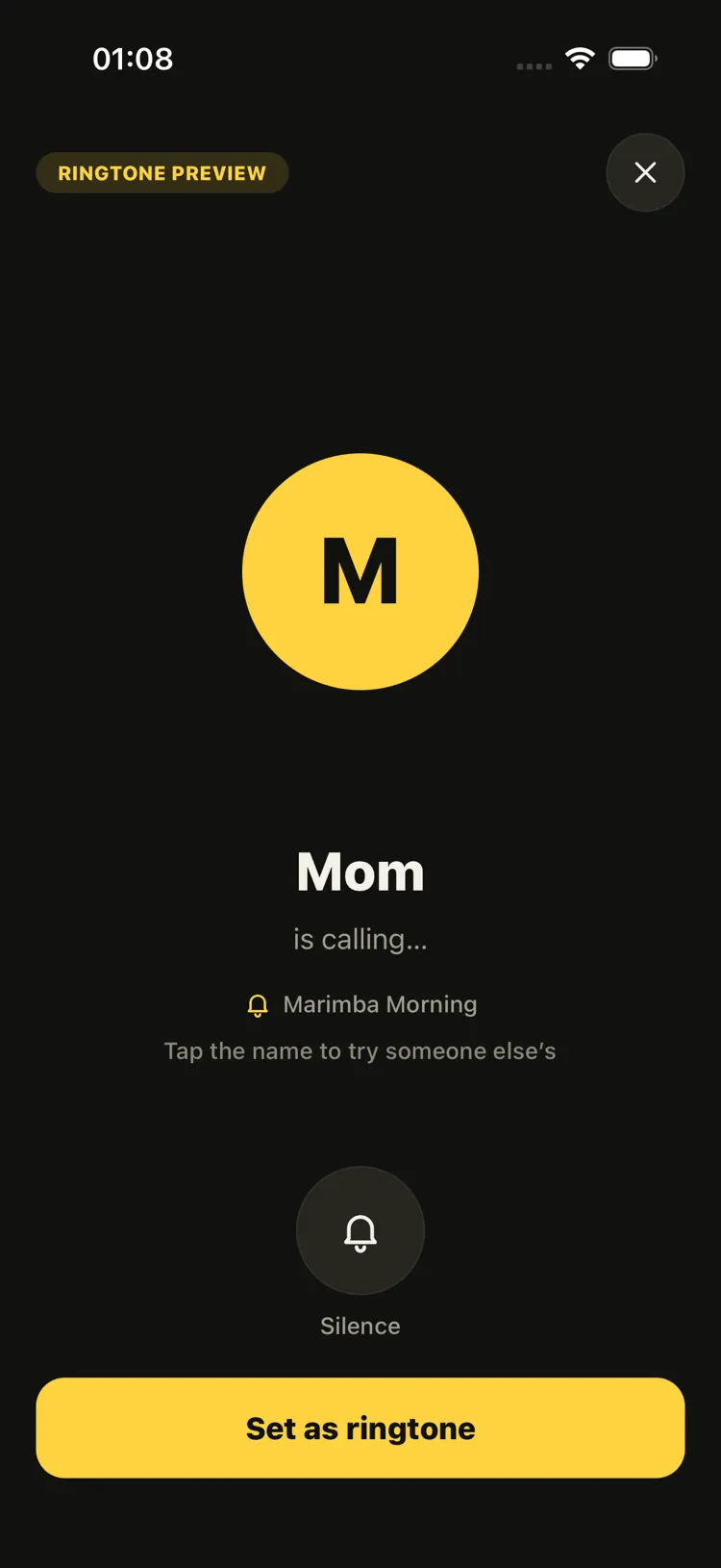
Before you set it, hear your tone ring full screen the way a call would — with a caller name you can change.
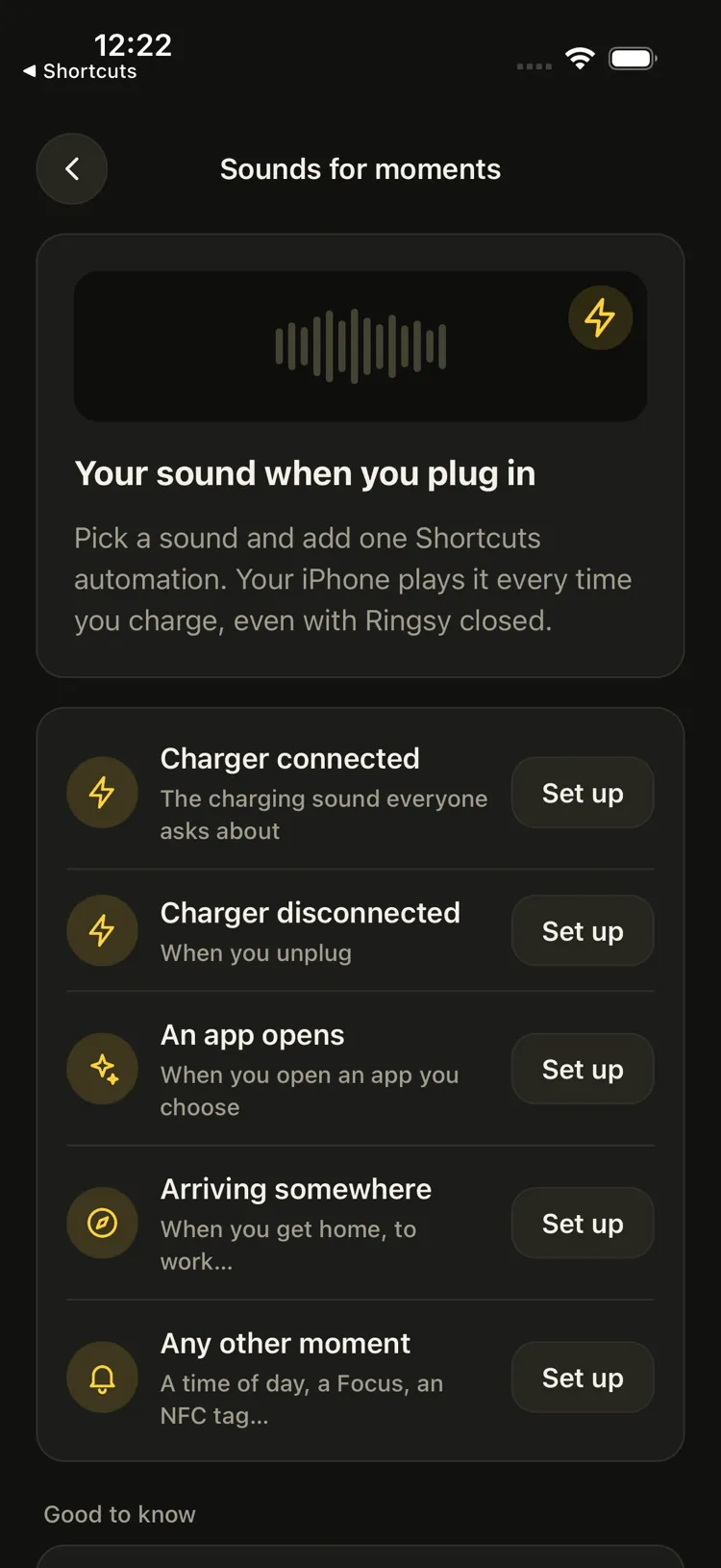
Play a Ringsy sound when the charger connects or disconnects, an app opens or you arrive somewhere — through a Shortcuts automation Ringsy walks you through.
Say “Record a ringtone in Ringsy” and it opens ready to record. Also in Spotlight and the Shortcuts app.
Your first two ringtones are free, then $2.99 unlocks Ringsy for good. No weekly fee, nothing to cancel.
No account, and your sounds are never uploaded: they are opened, cut and saved on this iPhone.
No computer, and no GarageBand on iOS 26.
An audio file from Files (mp3, m4a, wav…), a video from Photos, a fresh recording, or one of Ringsy’s built-in sounds.
Choose up to 30 seconds, hear the loop, add a fade and even out the volume. Give it a name.
Tap “Save & set as ringtone”, then “Use as Ringtone” in the share sheet. Done.
Inside the app
Every screen below was captured from the running app, with demo sounds we generated ourselves.
01/Library
Four sources right on the home screen, and a library to replay, re-edit and set again any time.
02/Hear it as a call
Tap the phone button in the editor and your tone rings full screen, looping, the way a call would. Change the caller name to picture who it’s for.
03/Editing
Every change can be undone and redone from the editor’s header. Add a fade in and out, and let Ringsy level the loudness for you.
04/Set it
On iOS 26 the share sheet has “Use as Ringtone” built in. Ringsy tells you exactly where to tap.
05/Sounds for moments
iOS doesn’t let any app replace the iPhone’s own charging sound. Ringsy does it the way iOS allows: a Shortcuts automation that plays your sound — and shows you how to add it, step by step.
06/From video
Pick a video from Photos and Ringsy pulls out its soundtrack, ready to trim like any song.
07/Record
Say something, sing, or hold your iPhone up to a sound. Record up to 60 seconds, then trim it right away.
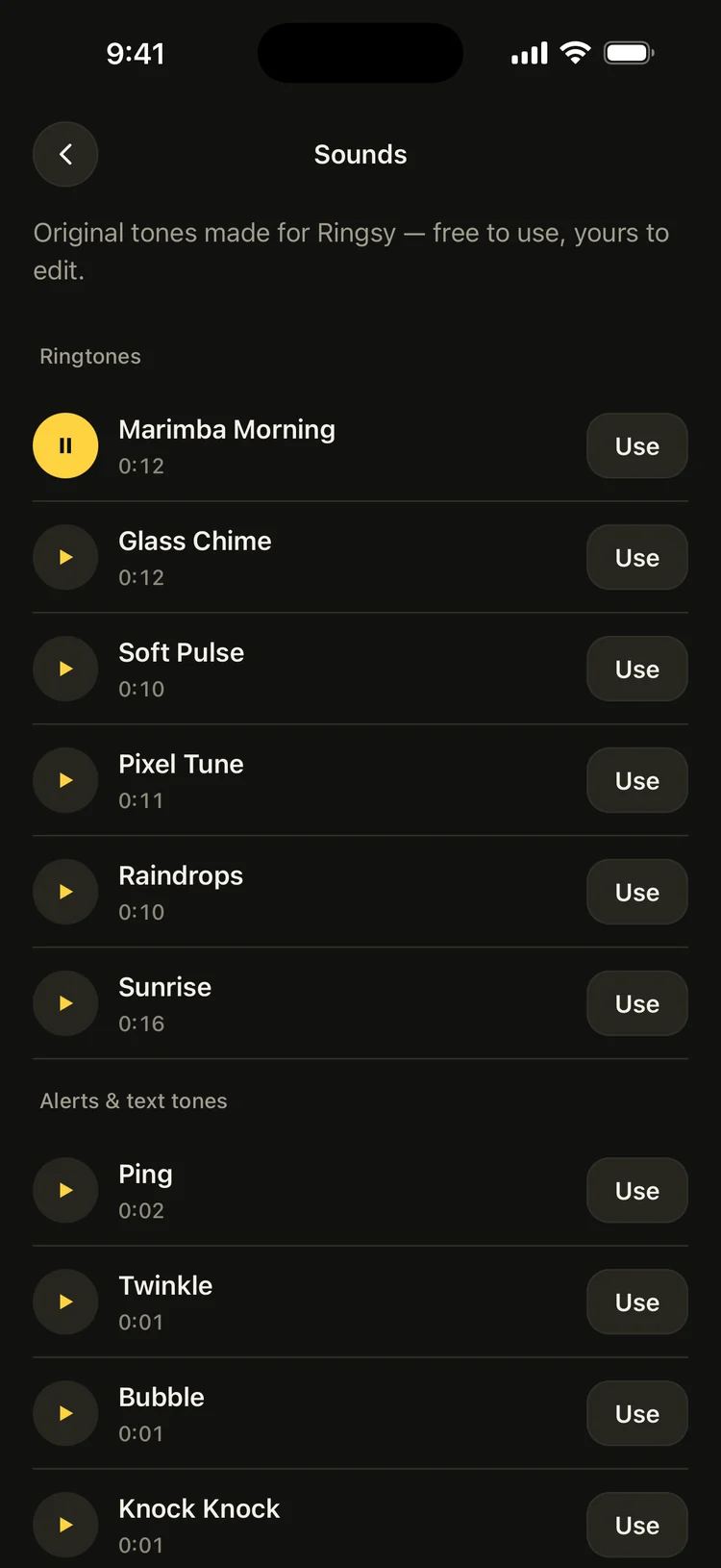
08/Built-in sounds
Six ringtones and four alerts made by Ringsy — no licensing to worry about, and yours to edit.
Privacy
Ringsy has no server to send your sounds to. Songs, videos and recordings are opened, cut and saved right on your iPhone — there is no upload step at all. The only usage data sent is anonymous statistics, which you can turn off in Settings.
Decoding, trimming, fades, loudness and the final ringtone file all happen on your iPhone.
Your songs, videos and recordings are never sent to any server.
No sign-up, no email, no password.
No ads, no IDFA, no tracking across apps. Anonymous usage statistics help improve Ringsy — and you can turn them off.
Most ringtone apps lock everything behind a weekly subscription. Ringsy works the moment you open it, and one small payment unlocks it for good.
$0
$2.99once
A single payment through your App Store account. Nothing renews and there is nothing to cancel. Prices may vary by country.
Really. Ringsy sells exactly one thing: Ringsy Unlimited, $2.99, bought once. Your first two ringtones are free, and editing and preview are always free.
On iOS 26: tap “Set as ringtone”, then choose “Use as Ringtone” in the share sheet (you may need to scroll the row of actions). On iOS 17–18, Ringsy walks you through Apple’s free GarageBand app step by step, and also gives you an .m4r file you can drag onto your iPhone in Finder on a Mac.
iPhone only accepts ringtones shorter than 30 seconds, so Ringsy caps a selection at 29.9 s. A short sound can repeat to fill the 30 seconds.
No. Apple Music songs and iTunes purchases are copy-protected (DRM), so no app can export them. Use an audio file from Files, the sound of a video, a recording or one of Ringsy’s built-in sounds.
Yes. Set it as a ringtone first (that adds it to your iPhone’s sounds), then open Settings › Sounds & Haptics › Text Tone and pick it at the top of the list.
Not the system sound itself — iOS lets no app replace it. What Ringsy can do is play a sound you pick when the charger connects (or disconnects, and other moments) through a Shortcuts personal automation. Ringsy walks you through setting it up once; after that it plays even with Ringsy closed. Built-in short sounds are free; one of your own tones counts as an export.
No. Your sounds are opened, cut and saved on your iPhone and never leave it. What does leave the device is purchase data, so the app knows whether you have unlocked it, and anonymous usage statistics (which you can turn off in Settings) — see the Privacy Policy.
iOS 17 or later. The one-tap “Use as Ringtone” action arrived in iOS 26; on earlier versions Ringsy uses the GarageBand route.
Your first two ringtones are free, and $2.99 unlocks it for good. Feedback or a question? Email me any time.