How to turn a voice memo into an iPhone ringtone
Published October 1, 2026 · 6 min read
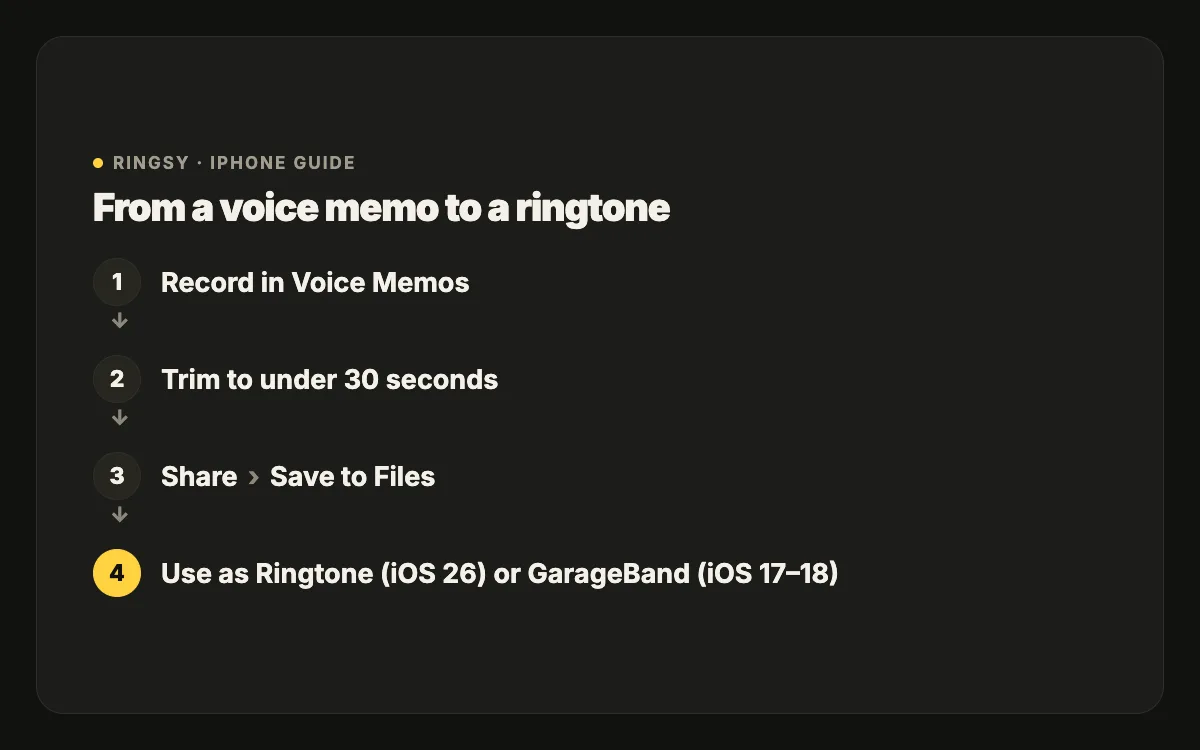
To turn a voice memo into a ringtone, trim the recording to under 30 seconds in the Voice Memos app, then share it and choose “Use as Ringtone” on iOS 26 or later. On iOS 17 or 18, save the memo to the Files app and export it as a ringtone with Apple’s free GarageBand app. No computer is needed either way.
A recorded ringtone — your child saying “Mum, pick up!”, a friend’s laugh, a tune you hummed — is the most personal sound a phone can make. This guide covers recording it well, trimming it, setting it, and making it audible from inside a bag.
What do you need before you start?
- An iPhone on iOS 17 or later. Check in Settings › General › About › iOS Version.
- The Voice Memos app, which comes with iOS. If you removed it, download it again from the App Store.
- On iOS 17 or 18 only: Apple’s free GarageBand app.
- A recording you are allowed to use. Recording people is fine for your own phone, but ask them first — and remember that a ringtone plays out loud in public.
How do you record a voice memo that works as a ringtone?
A phone speaker in a pocket is small and muffled, so a recording that sounds fine on headphones can disappear as a ringtone. A few habits help a lot:
- Hold the iPhone 15–30 cm from the mouth or the sound, with the bottom microphone pointing at it.
- Record somewhere quiet. A fan, traffic or a TV in the background turns into hiss once the volume is raised.
- Speak or sing a little louder than normal, and keep the important part short and clear.
- Leave a second of silence before and after, so you have room to trim without cutting a word.
- 1Open Voice Memos and tap the red record button.
- 2Tap it again to stop. The memo is saved with the date or your location as its name.
- 3Tap the memo’s name to rename it to something you will recognise in a list of ringtones.
How do you trim a voice memo to under 30 seconds?
An iPhone ringtone has to be shorter than 30 seconds, and it always plays from the very start of the file. Trim so the best moment is at second zero.
- 1In Voice Memos, tap the memo, then tap the ⋯ (More) button and choose Edit Recording.
- 2Tap the trim button (the square icon with handles) at the top right.
- 3Drag the yellow handles so only the part you want sits between them. Play it back to check.
- 4Tap Trim to keep the selection (or Delete to remove it instead), then tap Save and Done.
Trimming changes the memo itself. If you want to keep the full recording, duplicate it first from the ⋯ menu.
How do you set it as a ringtone on iOS 26?
iOS 26 added a “Use as Ringtone” action to the share sheet, so the whole job happens in Voice Memos.
- 1Tap the trimmed memo, then the ⋯ button, then Share.
- 2In the row of actions, tap “Use as Ringtone”. Scroll the row sideways or tap More if you do not see it.
- 3iOS adds the sound to your ringtones and opens the list with it selected.
If the action is missing, the memo is most likely 30 seconds or longer. Trim it again and retry.
How do you set it as a ringtone on iOS 17 or 18?
Without the share-sheet action, GarageBand does the export.
- 1In Voice Memos, tap the memo, then ⋯ › Share › Save to Files, and save it to On My iPhone.
- 2Open GarageBand, swipe to Audio Recorder and tap Voice to start a project.
- 3Tap the Tracks view button, then the Loop Browser icon, open the Files tab and tap “Browse items from the Files app”. Pick the memo.
- 4Drag it to the very start of the track and turn the metronome off.
- 5Tap the down arrow at the top left and choose My Songs.
- 6Touch and hold the project, tap Share › Ringtone, name it and tap Export.
- 7Tap “Use sound as…” and choose Standard Ringtone, Standard Text Tone or Assign to contact.
Why is my recorded ringtone so quiet?
Voice recordings are usually much quieter than music, which is mastered to be loud. When a memo is set as a ringtone it plays at that lower level, so it can be easy to miss.
- Record closer to the source and a little louder.
- Raise or normalise the volume before exporting. In GarageBand, drag the track’s volume slider up, and watch that the level meter does not hit red, which causes distortion.
- A very short sound, like a two-second laugh, works better repeated a few times to fill the ringtone than played once.
- Test it: call yourself from another phone, with the iPhone in a pocket or bag.
Can I use it as a text tone or for one contact?
Yes. Once it is in your ringtone list, it is available everywhere iOS offers sounds:
- Text tone: Settings › Sounds & Haptics › Text Tone, then pick it at the top under Ringtones.
- One person: open the contact, tap Edit › Ringtone (or Text Tone) and choose it.
- Alarm: in the Clock app, edit an alarm, tap Sound and pick it under Ringtones.
Where Ringsy helps
The steps above are free and work well. Ringsy, our ringtone maker for iPhone, just puts recording, trimming and setting in one place.
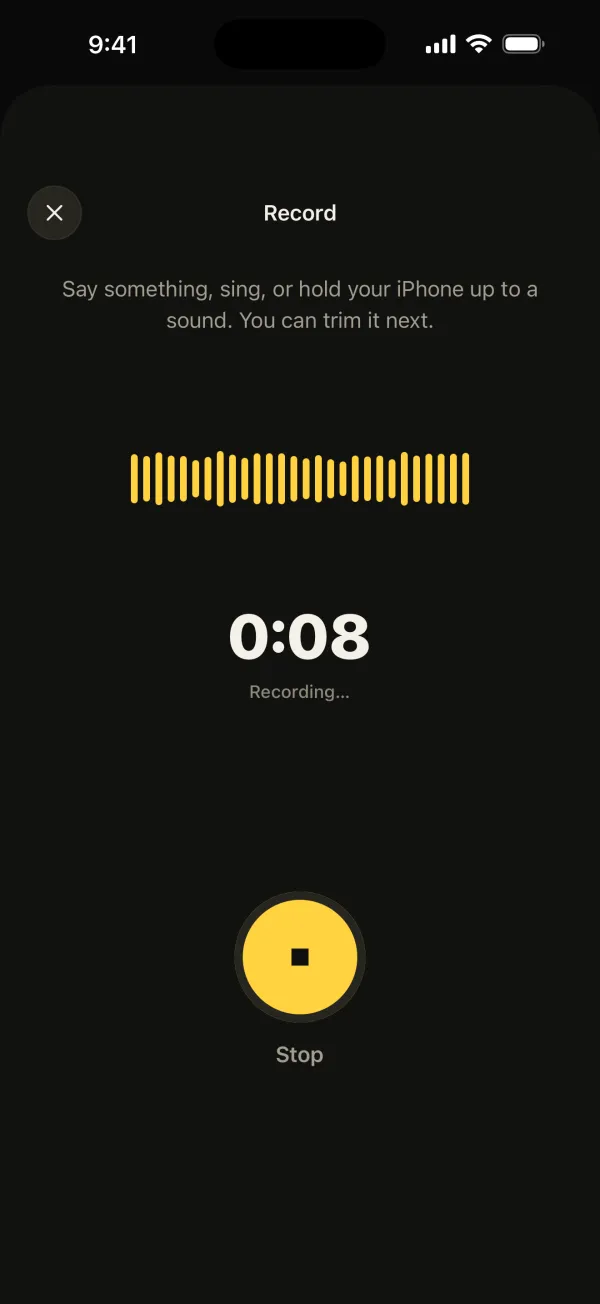
Tap Record and capture up to 60 seconds — the microphone is on only while you record — or share an existing memo from Voice Memos straight into Ringsy. The recording opens on a waveform where you can zoom in and nudge the start by a tenth of a second. Even out volume is on by default, so a quiet voice rings loud; you can add a fade and let a short sound repeat to fill 30 seconds. “Save & set as ringtone” then hands it to “Use as Ringtone” on iOS 26, or walks you through GarageBand on iOS 17–18 and gives you an .m4r file. Recordings stay on your iPhone and are never uploaded. Your first two ringtones are free; after that a single $2.99 purchase unlocks Ringsy for good.