How to set a different ringtone for each contact on iPhone
Published October 1, 2026 · 6 min read
To give one person their own ringtone on iPhone, open their card in Contacts, tap Edit, tap Ringtone and pick a sound — it overrides your default ringtone for that person only. A custom sound works too, as long as it is already in your iPhone’s ringtone list.
This guide covers the exact steps, the same trick for text tones, the Emergency Bypass switch that lets one person ring through Silent mode, and how to choose sounds you will actually recognise from across the room.
How do I set a ringtone for one contact?
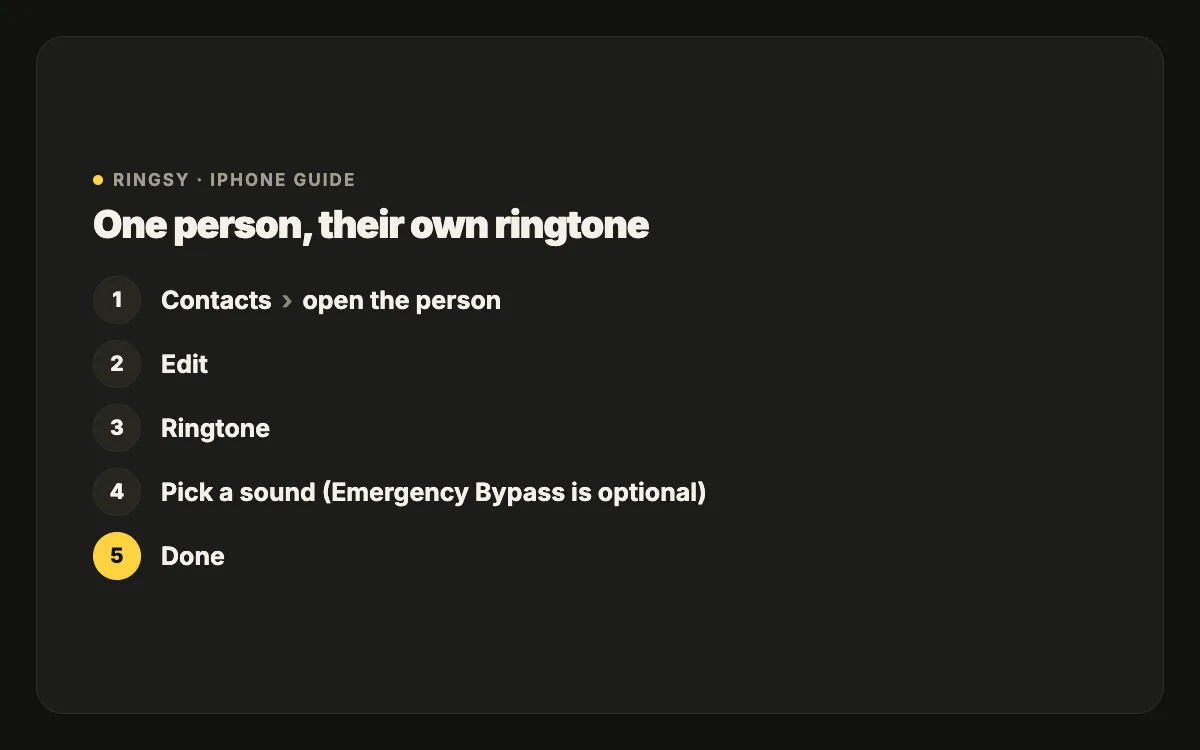
- 1Open the Contacts app (or the Phone app’s Contacts tab) and tap the person.
- 2Tap Edit at the top right.
- 3Scroll down and tap Ringtone.
- 4Pick a sound. Custom tones you have added appear at the top of the list, under Ringtones; Apple’s own tones follow.
- 5Tap Done to close the sound list, then Done again to save the contact.
From now on, calls from that number play the chosen sound, while everyone else keeps your default ringtone from Settings › Sounds & Haptics › Ringtone. If the person has several numbers on one card, the ringtone applies to all of them.
Can I give someone their own text tone too?
Yes. On the same Edit screen, just below Ringtone, tap Text Tone and pick a sound. It applies to messages from that contact in the Messages app.
Text tones are best kept short — one to three seconds. A 25-second song clip as a text tone gets cut off or becomes tiring after the first few messages.
What is Emergency Bypass, and should I turn it on?
Inside the Ringtone (and Text Tone) screen for a contact there is an Emergency Bypass switch. With it on, that person’s calls make sound and vibrate even when the Ring/Silent switch is on silent or a Focus such as Do Not Disturb or Sleep is active.
- Good for: a parent, a partner, a child, a carer — people whose call you never want to miss at night.
- Use sparingly: every contact with Emergency Bypass can wake you up.
- It works per contact, so you can turn it on for their calls but leave their texts quiet.
How do I use a custom sound for one person?
The contact’s Ringtone list only shows sounds your iPhone already treats as ringtones. A song in the Files app or a voice memo won’t show up there until you add it as a ringtone first.
- On iOS 26 or later: in Files or Voice Memos, share the audio (30 seconds or less) and choose “Use as Ringtone”. Our guide to making a ringtone without a computer has the full steps.
- On iOS 17 or 18: import the audio into Apple’s free GarageBand app, then in My Songs touch and hold the project, tap Share › Ringtone › Export. When asked, tap “Use sound as…” and choose Assign to contact to jump straight to this step.
Once added, the sound also appears in Settings › Sounds & Haptics and in the Clock app, so you can reuse it anywhere.
Which sounds make callers easy to tell apart?
The point of a per-contact ringtone is to know who is calling before you look. Some choices work far better than others:
- Make them different in character, not just in tune: a voice, a short melody, a rhythmic beep. Two piano clips sound alike from another room.
- Put the recognisable part at second zero. A ringtone plays from the start, and you usually decide whether to pick up within the first two rings.
- Record the person. A voice memo of your kid saying “Mum, pick up!” or a friend’s laugh is unmistakable — ask them first.
- Keep a few people, not everyone. Distinct tones for three to five key people stay memorable; twenty custom tones turn into noise.
- Check the volume. A quiet recording disappears in a pocket; boost or normalise it before you add it.
Why does a contact still ring with the default tone?
- The call comes from a number that isn’t on the card, such as a work line or a hidden number. Add the number to the same contact.
- The contact is duplicated, for example once from iCloud and once from another account. The ringtone is set on one copy only; link or merge the cards.
- Calls arrive through an app such as WhatsApp, Zalo or FaceTime audio from another account. Third-party apps may use their own sound settings, so check the app’s notification options.
- The custom tone was deleted from your ringtone list. The contact then falls back to the default; add the tone again and re-pick it.
Where Ringsy helps
The steps above all work without any extra app. The fiddly part is preparing a sound that works as a ringtone: under 30 seconds, starting on the right beat and loud enough.
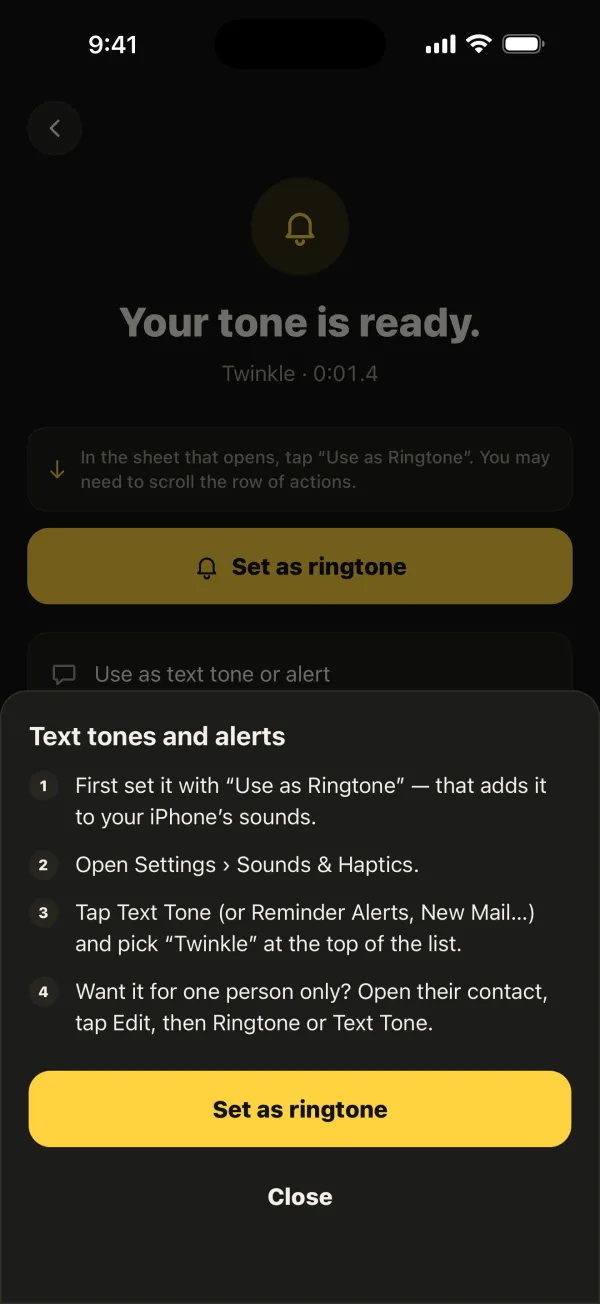
Ringsy, our ringtone maker for iPhone, does that preparation in one screen. Pick a file, a video from Photos or a fresh recording (up to 60 seconds), drag the handles on the waveform, add a fade and let Even out volume level it. “Save & set as ringtone” hands it to “Use as Ringtone” on iOS 26 or walks you through GarageBand on iOS 17–18, and the Export screen includes a short guide for setting the tone for one contact. Your first two ringtones are free; after that it is a single purchase, with no subscription. Sounds are processed on your iPhone and never uploaded.