How to make a custom text tone on iPhone
Published October 1, 2026 · 6 min read
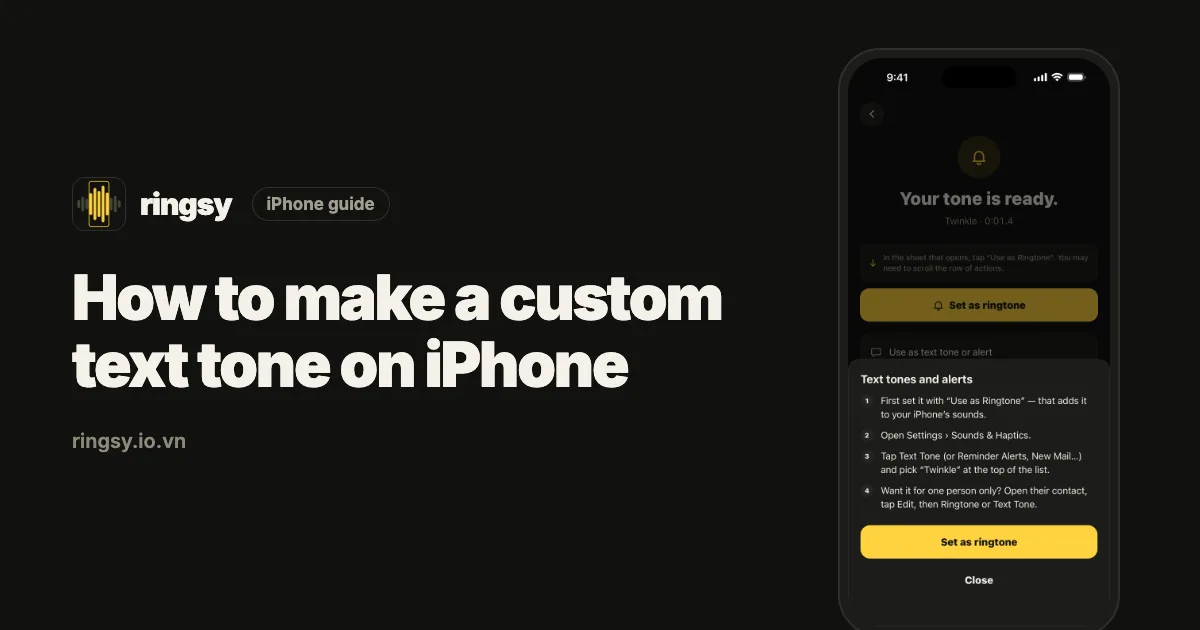
To use a custom text tone on iPhone, turn a short audio clip into a ringtone first (with “Use as Ringtone” on iOS 26, or GarageBand on iOS 17–18), then pick it in Settings › Sounds & Haptics › Text Tone. Custom tones appear at the top of the list, under Ringtones, and can also be set for a single contact.
iPhone has no separate “make a text tone” button: any ringtone you add can be used for messages, mail and reminders. The trick is making a sound short enough to work as an alert.
What makes a good text tone?
A text tone plays in full every time a message arrives, often several times in a row. That changes what works:
- Short: one to three seconds. Longer clips get annoying fast and may still be playing when the next message comes in.
- Starts instantly: no silence or slow fade at the beginning, or the alert feels late.
- Distinct from your ringtone, so you can tell a call from a message without looking.
- Not harsh: you will hear it at night and in meetings. A clean chime or a single word ages better than a loud effect.
How do I turn a clip into a tone on iOS 26?
- 1Get the sound as an audio file in the Files app or as a recording in Voice Memos.
- 2Trim it to the two or three seconds you want. Voice Memos can trim a recording: tap the recording, tap ⋯ › Edit Recording, then the trim icon.
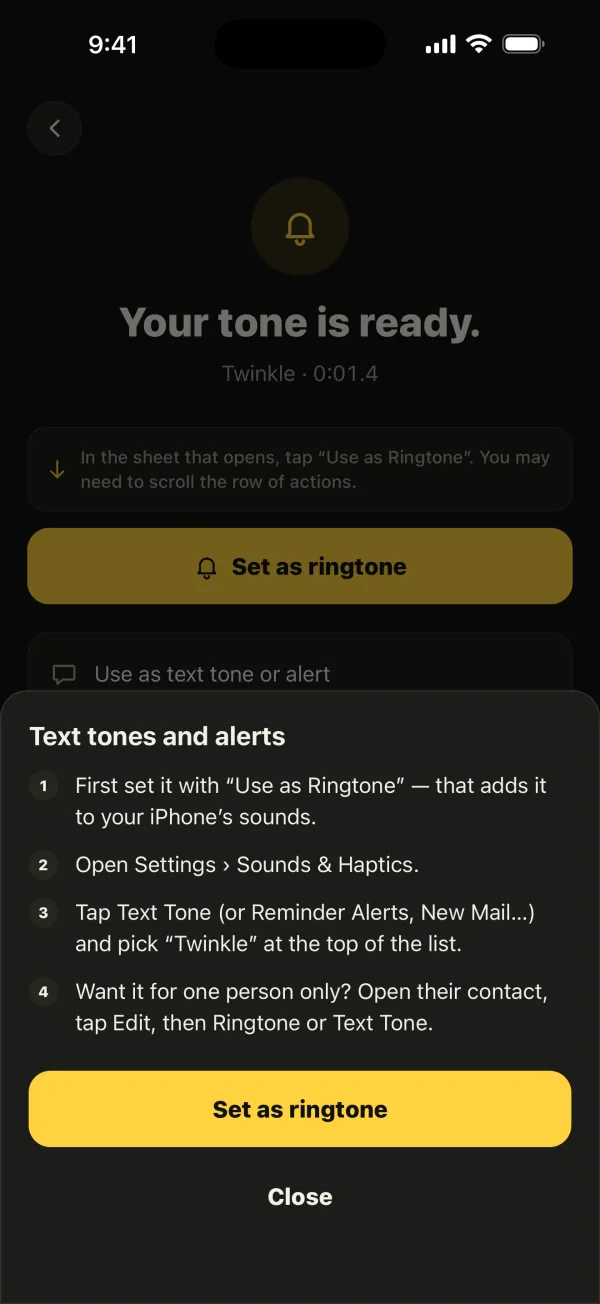
- 3Touch and hold the file (or tap ⋯ on the memo), tap Share, then “Use as Ringtone”. You may need to scroll the row of actions.
- 4iOS adds it to your tones. It now appears in every sound list on the iPhone.
How do I do it on iOS 17 or 18?
Use Apple’s free GarageBand app:
- 1Create a new Audio Recorder project, switch to the Tracks view and import your file from the Loop Browser’s Files tab.
- 2Drag it to the start of the track and trim it to a couple of seconds. Turn off the metronome.
- 3Go to My Songs, touch and hold the project, tap Share › Ringtone, name it and tap Export.
- 4Tap “Use sound as…” and choose Standard Text Tone, or tap OK and pick it later in Settings.
Our guide to making a ringtone without a computer walks through the GarageBand screens in more detail.
Where do I set it as my text tone?
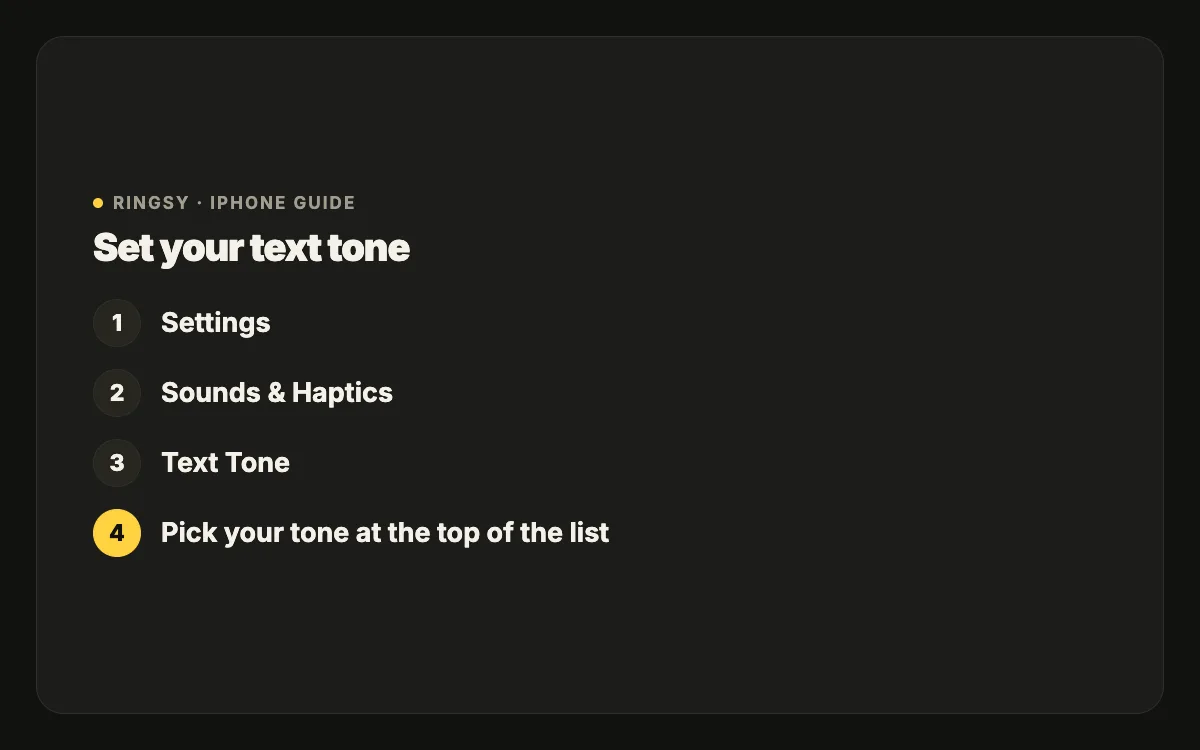
Open Settings › Sounds & Haptics › Text Tone. Your custom tones are at the top under Ringtones; the short Alert Tones are below them. Tap yours, and it is set.
The same Sounds & Haptics screen lets you change other alerts with any tone you have added:
- New Mail and Sent Mail
- Calendar Alerts and Reminder Alerts
- Voicemail
Apple also sells ready-made tones in the Tone Store, reached from the top of the Text Tone list, if you would rather buy one than make it.
Can I set a different text tone for one person?
Yes. In Contacts, open the person, tap Edit, then Text Tone, and choose a sound. Messages from them will use that tone; everyone else keeps your default. The same screen has an Emergency Bypass switch if you want their texts to sound even in Silent mode or a Focus.
Does it change the sound for Zalo, WhatsApp or Messenger?
Usually not. The Text Tone setting applies to Apple’s Messages app. Chat apps such as Zalo, WhatsApp, Messenger and Telegram send their own notifications, and their sound is chosen inside each app’s notification settings, often from the app’s own list. Whether a custom tone can be used there depends on the app and its version, so check its settings rather than expecting your iPhone text tone to carry over.
Why doesn’t my custom tone play?
- The iPhone is on Silent. Text tones are muted then; turn on Emergency Bypass for key contacts if you need them.
- A Focus is on and the sender or app isn’t allowed through.
- The tone was removed from your ringtone list, so iOS fell back to a default. Add it again and re-pick it.
- The clip starts with silence, so it seems not to play when a notification is brief. Trim the start.
Where Ringsy helps
Everything above works with the apps already on your iPhone. Ringsy makes the clip-making part quicker: it includes a set of original short alerts made for messages and notifications, and lets you cut your own from a file, a video from Photos or a recording, zooming the waveform and nudging the start by a tenth of a second so the sound hits right away.
“Save & set as ringtone” adds it to your tones (via “Use as Ringtone” on iOS 26, or a guided GarageBand route with an .m4r file on iOS 17–18), after which you pick it in Text Tone like any other. Sounds stay on your iPhone, there is no account, and after two free ringtones Ringsy Unlimited is a one-time purchase.