How to change the charging sound on iPhone (with Shortcuts)
Published October 1, 2026 · 5 min read
Videos of iPhones playing a custom sound when they’re plugged in come up again and again, and the question is always the same: how do you change the charging sound?
The honest answer first: iOS doesn’t let any app replace the system charging chime. What you can do — for free, with Apple’s Shortcuts app — is make the iPhone play a sound of your choice every time the charger connects or disconnects. Here is how to set it up and keep it working.
What you need
- An iPhone on iOS 17 or later (the steps below use the “Run Immediately” option that iOS 17 added; earlier versions asked for confirmation each time).
- The Shortcuts app, which comes with iOS.
- A short sound saved in the Files app. One to three seconds works best — it plays every single time you plug in, and a long clip gets old fast.
Set up the automation
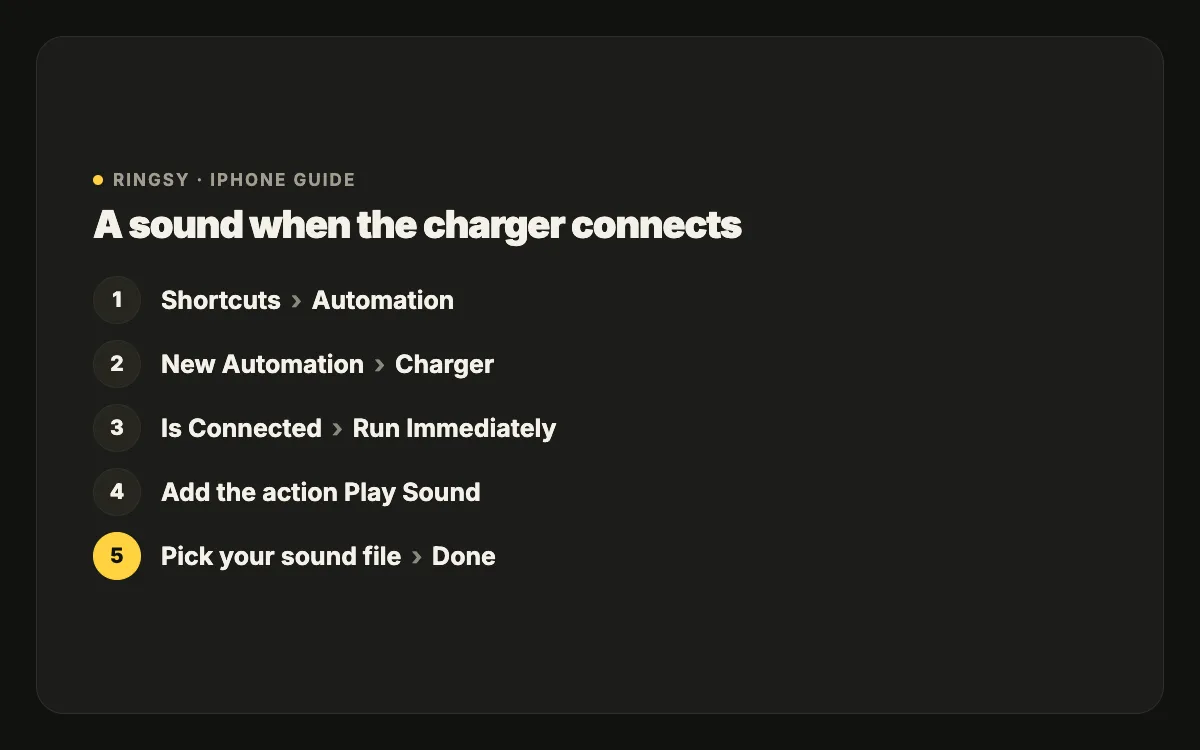
- 1Open Shortcuts and tap Automation at the bottom of the screen.
- 2Tap New Automation (or + at the top right if you already have automations).
- 3Scroll down and choose Charger. Select Is Connected (choose Is Disconnected instead for an unplug sound).
- 4Select Run Immediately, turn off Notify When Run if you don’t want a banner, and tap Next.
- 5Tap New Blank Automation, then Add Action.
- 6Search for “Play Sound” and add it. Tap the Sound field in the action and pick your audio file from Files. (On some iOS versions you first add a “Get File” action to choose the file, then the Play Sound action after it.)
- 7Tap Done. Plug in your iPhone to test it.
The automation works with a cable or a wireless charger, and it runs even when no app is open.
Make it play when you unplug, too
Repeat the steps above and choose Is Disconnected in step 3. Some people use a rising sound for plugging in and a falling one for unplugging, so they can tell by ear whether the phone actually started charging.
If the sound doesn’t play
- Check the automation is still on: Shortcuts › Automation, open it and make sure it isn’t disabled.
- Check that it says Run Immediately. If it is set to Run After Confirmation, you’ll get a notification instead of a sound.
- Turn the volume up. The sound follows the iPhone’s volume, so a phone turned all the way down plays it silently.
- Re-pick the file if you moved or renamed it in Files — the automation points at the original location.
- Expect the system chime too. Your sound plays in addition to iOS’s own charging sound, not instead of it; that part can’t be changed.
Silent mode, Focus and battery
- Silent mode: with Silent on, iOS replaces its own charging chime with a vibration. Whether your automation’s sound is still audible depends on your volume settings, so test it once with Silent on and once with it off before relying on it.
- Focus and Sleep: a Focus silences notifications, not automations; the automation still runs. If you don’t want a sound at night, add a second automation for a time of day, or simply turn the automation off in the evening.
- Battery: a one-second sound played when you plug in costs effectively nothing. The automation does not keep anything running in the background between charges.
Picking a good charging sound
- Short and clean: a single chime, a word or a short effect. Anything with a long intro will still be playing when you’ve walked away.
- Not too loud: you will often plug in at night next to someone sleeping.
- Your own: a recorded “thank you”, a pet’s sound or a game effect you made is more fun than the same clip everyone downloaded.
The same Shortcuts approach works for other moments: when a specific app opens, when you arrive at a place, at a time of day, or when a Focus turns on.
Where Ringsy helps
The free steps above work on their own. Ringsy’s “Sounds for moments”, part of Ringsy 1.2 (in App Review at the time of writing, so not in the App Store version yet), is built to make the sound part easier: it includes short built-in sounds made for this, lets you use one of your own tones (from a song, a video or a recording you trimmed in Ringsy), and shows the Shortcuts steps for each moment — charger connected or disconnected, an app opening, arriving somewhere — one screen at a time. After the one-time setup the sound plays even with Ringsy closed, and you can test it from the app.