How to change your iPhone alarm sound to a song or your own tone
Published October 1, 2026 · 6 min read
To change an iPhone alarm sound, open Clock › Alarms, tap the alarm, tap Sound, then choose Pick a Song for music from your library or any tone under Ringtones, including custom ones you have added. Each alarm can have its own sound.
Below are the steps, the catch with streaming songs, how to use a sound you made yourself, and what makes an alarm sound wake you up without making you hate it.
How do I change the sound of an alarm?
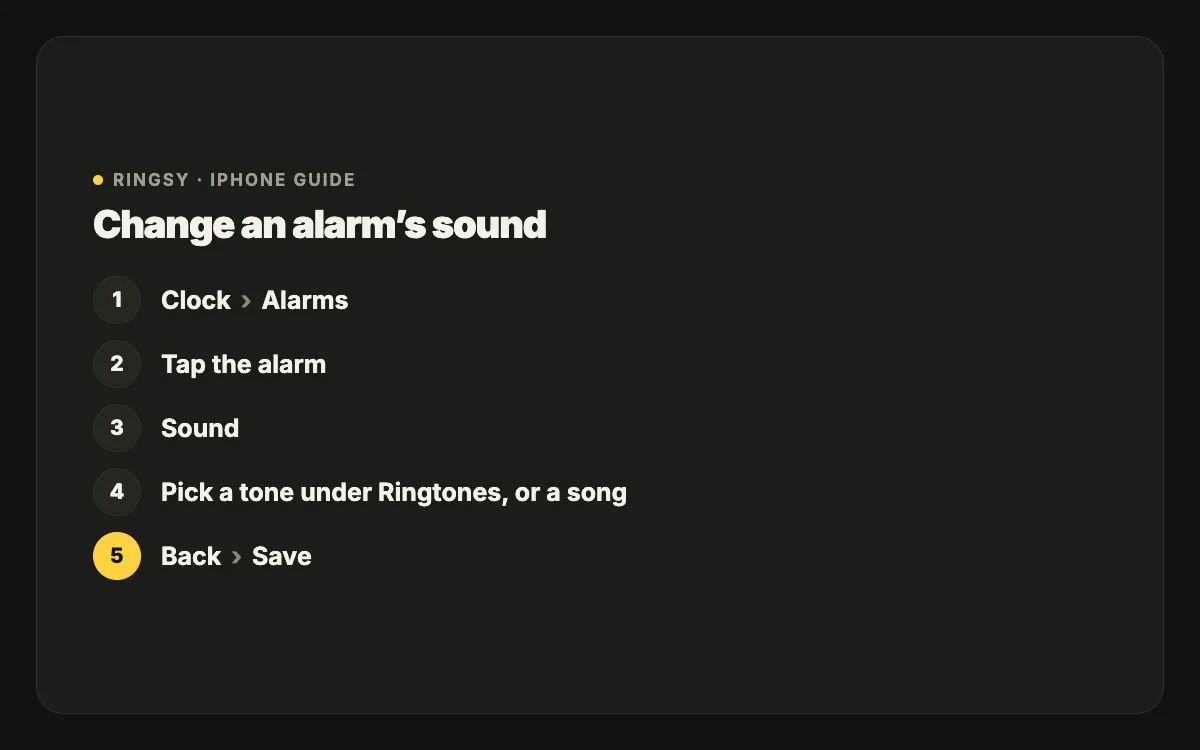
- 1Open the Clock app and tap Alarms.
- 2Tap Edit, then tap the alarm you want to change (or tap + to create a new one).
- 3Tap Sound.
- 4Pick from the list: Songs at the top, then Ringtones (your custom ones first), then Apple’s classic tones.
- 5Tap Back, then Save.
The sound is set per alarm, so a weekday alarm and a weekend alarm can sound different.
Can I wake up to a song?
Yes. On the Sound screen, tap Pick a Song and choose a track from your music library. The song plays from the beginning when the alarm goes off.
- Download it to the iPhone first. A track that only streams may not play if you are offline when the alarm fires, and iOS may fall back to a default tone. Downloading avoids the doubt.
- The song must be in the Music app’s library. Songs in other streaming apps, YouTube or a video can’t be picked here.
- Check the start. Many songs open with a quiet intro of several seconds; choose one that starts with something audible.
How do I use my own sound as an alarm?
The Ringtones section of the alarm’s Sound list shows every ringtone you have added, so the route is: make it a ringtone first, then pick it in Clock.
- iOS 26 or later: share an audio file from Files (or a recording from Voice Memos) and choose “Use as Ringtone”.
- iOS 17 or 18: export it as a ringtone from Apple’s free GarageBand app (My Songs › Share › Ringtone).
Ringtones are limited to under 30 seconds, and the alarm repeats the clip until you stop or snooze it. A sound that loops smoothly — no long silence at the end — works best. This is also the way to use a sound that isn’t in your music library, such as a recording of your own voice or audio taken from a video.
What makes a good alarm sound?
- A gentle start, then something firm. A clip that starts soft and builds in the first few seconds is less jarring, but it must become loud enough to actually wake you.
- Enough length to loop well. A one-second blip repeated forever is grating; ten to thirty seconds feels more natural.
- Loud enough on the speaker. Quiet recordings and soft acoustic tracks can disappear under a pillow. Normalise or boost the volume before adding it.
- Not your favourite song. Many people find that a song they love becomes one they dread. Pick something you like but don’t mind associating with mornings.
- Test it once with the iPhone where it sleeps — on the nightstand, face down, on a charger.
Does the alarm play when the iPhone is on Silent?
Yes. Clock alarms ring even with the Ring/Silent switch on silent or a Focus on. Their volume follows the Ringtone and Alerts volume in Settings › Sounds & Haptics, not the media volume — so if alarms are too quiet, raise that slider. If “Change with Buttons” is on, the side buttons also change it.
To change the vibration, tap Haptics at the top of the alarm’s Sound screen. Choose None for a silent vibration-free alarm, or a stronger pattern if you sleep through sound.
What about the Sleep schedule alarm?
The wake-up alarm from the Sleep schedule (set in the Health app, or the Sleep | Wake Up row in Clock) is managed separately from regular alarms. Its sound options are set in the schedule itself and may offer a different list from a normal alarm, depending on your iOS version. If you want a custom tone there and it isn’t offered, use a regular alarm instead.
Where Ringsy helps
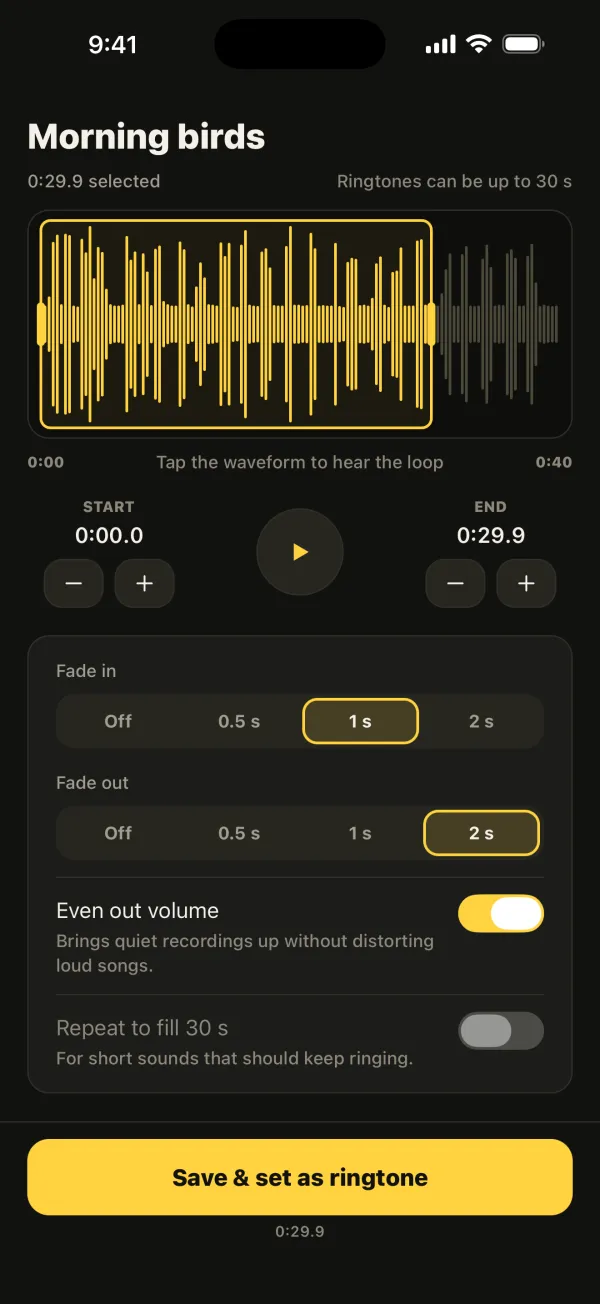
All of this works without any extra app. Ringsy helps with the sound itself: pick a song file, a video’s soundtrack or a recording, find the part you want on the waveform (Best part can suggest the most recognisable stretch), add a fade-in for a softer start, and let Even out volume make sure a quiet clip is loud enough. Repeat to fill 30 s turns a short sound into a fuller loop.
“Save & set as ringtone” adds it to your iPhone’s tones, where Clock picks it up under Ringtones, and the Export screen has a short guide for using it as an alarm sound. Everything happens on your iPhone, with no account. The first two ringtones are free; Ringsy Unlimited is a one-time purchase.