How to change your ringtone on iPhone
Published October 1, 2026 · 5 min read
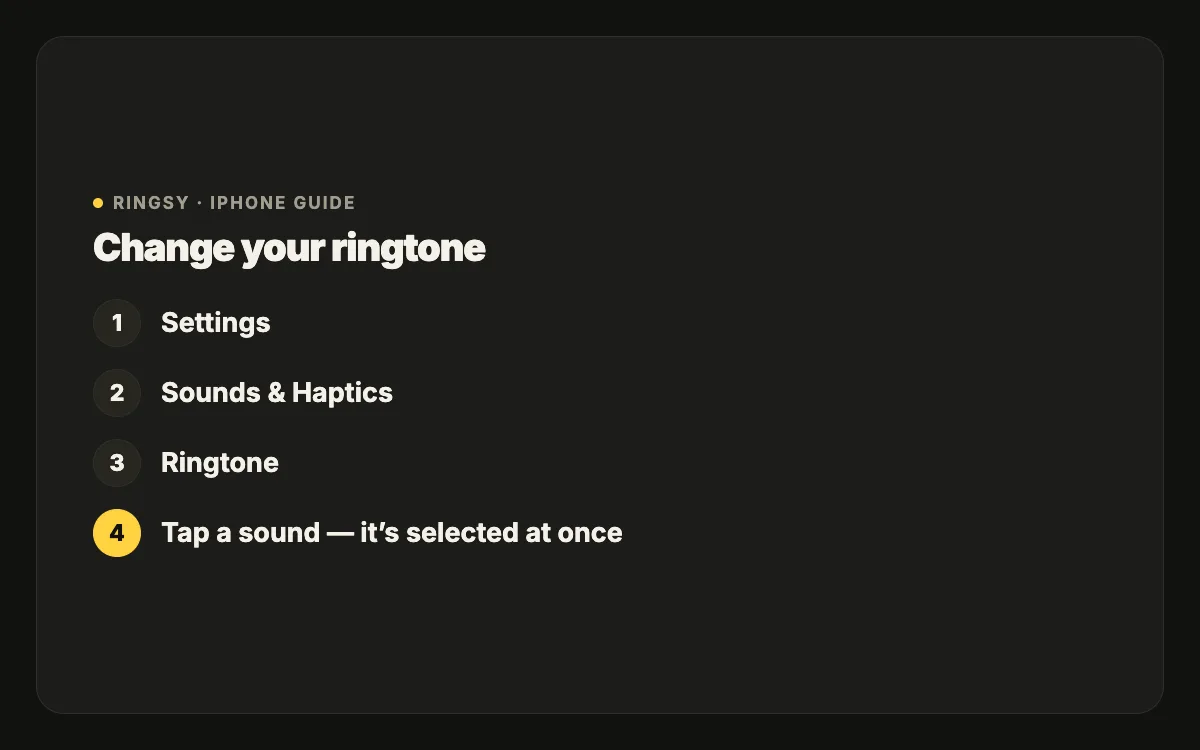
To change your ringtone on iPhone, open Settings › Sounds & Haptics › Ringtone and tap a sound; the tick moves and the new ringtone applies to every call straight away. Your own tones appear at the top of that list, Apple’s built-in ones below, and older ones under Classic.
This guide covers where each kind of tone lives, how to tell whether a change actually took effect, and how to use a song or recording of your own instead of a stock sound.
Where is the ringtone setting?
- 1Open Settings and tap Sounds & Haptics.
- 2Tap Ringtone. The screen lists every sound you can use for calls.
- 3Tap a sound to hear it. Tapping also selects it — there is no Save button.
- 4Go back. The Ringtone row on Sounds & Haptics now shows the new name.
The same screen has Text Tone, New Voicemail, New Mail, Calendar Alerts and Reminder Alerts, each with its own list. Changing the ringtone does not change those.
What are the sections in the ringtone list?
- At the top: tones you added yourself — made in GarageBand, added with “Use as Ringtone” on iOS 26, synced from a computer, or bought.
- Ringtones: Apple’s current set, with the default first.
- Classic: the older iPhone sounds (Marimba, Old Phone and the rest). Scroll to the bottom of the list and tap Classic to see them.
- Tone Store: a link to buy ringtones from the iTunes Store, in the regions where it is offered.
Haptics, at the very top of the screen, sets the vibration that goes with the ringtone. It is separate from the sound, so you can pair any sound with any vibration.
How do I use my own song or recording?
The list only shows sounds that are already ringtones, so a song or recording has to be added first. It has to be shorter than 30 seconds and not copy-protected — songs from Apple Music or other streaming apps can’t be used by any app.
- On iOS 26: in the Files app, touch and hold an audio file under 30 seconds, tap Share, then “Use as Ringtone”.
- On iOS 17 or 18: import the file into Apple’s free GarageBand app, trim it, then share the project as a Ringtone.
Once added, the tone sits at the top of the Ringtone list and you select it like any other. Our guide to making a ringtone without a computer walks through both routes step by step.
Can different people have different ringtones?
Yes. The ringtone in Settings is the default; a contact can override it. Open the contact, tap Edit, tap Ringtone and pick a sound. Calls from that person use their sound, and everyone else — including numbers you haven’t saved — uses the default.
That makes the default worth choosing deliberately: it is what you will hear for unknown numbers, deliveries and anyone you haven’t given a tone.
Why do I still hear the old ringtone?
- The caller has their own ringtone set in Contacts, which wins over the default.
- The call is coming in on another device, such as an iPad or Mac using the same Apple Account, with its own ringtone.
- You are hearing a FaceTime or app call. FaceTime uses the iPhone ringtone, but calls in other apps (WhatsApp, Zalo, Messenger and so on) can play the app’s own sound.
- You changed Text Tone or another alert instead of Ringtone — they are separate rows.
Tips for choosing a ringtone
- Recognisable in the first second. Most calls are answered within a few rings, so a long quiet intro is wasted.
- Mid to high pitch carries better from a pocket or bag than deep bass, which a phone speaker barely reproduces.
- Different enough from other people’s phones. If everyone in your office uses the default, a different default saves you from reaching for your phone at every ring.
Where Ringsy helps
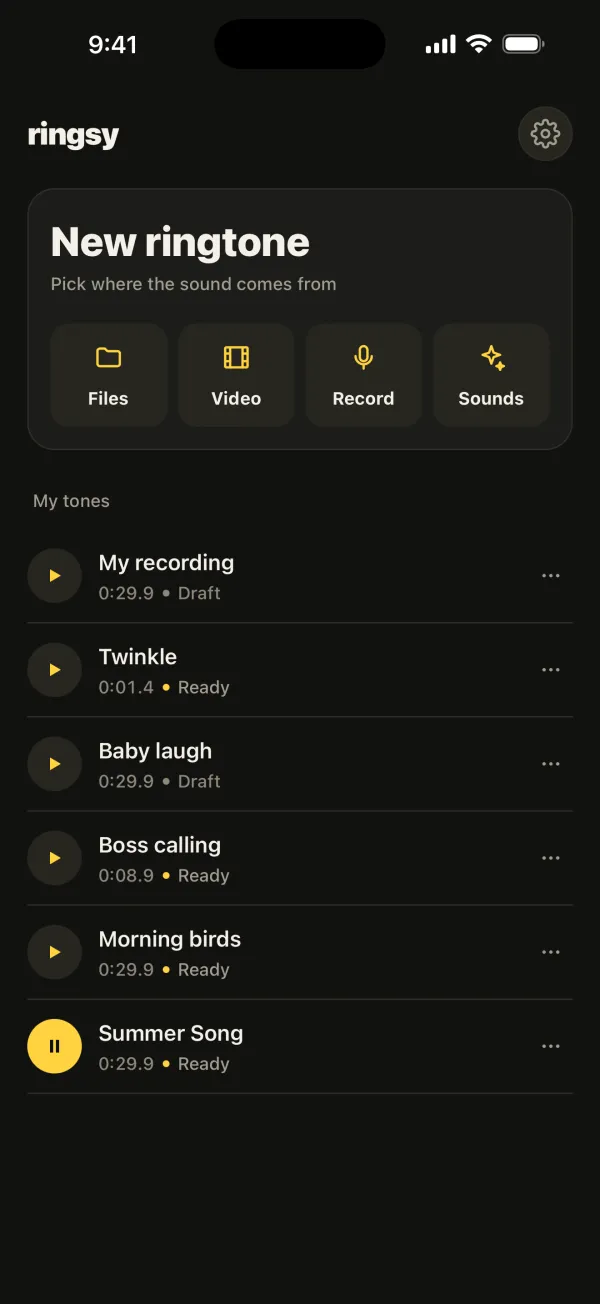
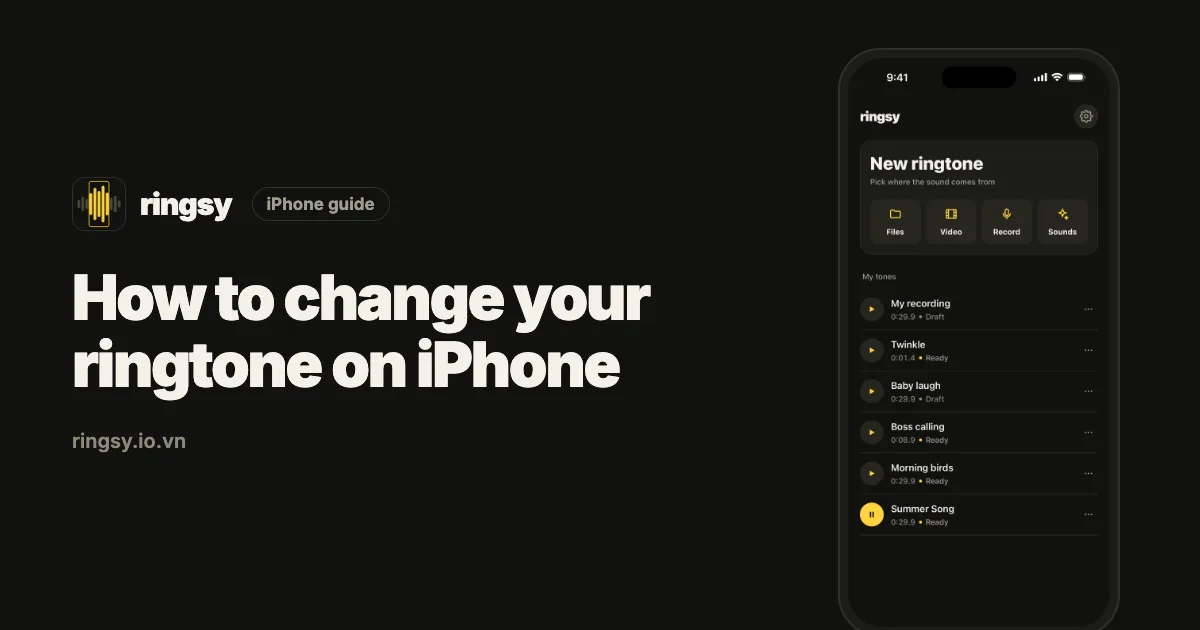
Changing between existing tones needs nothing but Settings. Ringsy, our ringtone maker for iPhone, helps when you want something that isn’t in the list yet: open a song from Files, the sound of a video from Photos or a new recording, trim up to 29.9 seconds on a waveform, add a fade and even out the volume, then tap “Save & set as ringtone”. On iOS 26 that opens “Use as Ringtone”; on iOS 17–18 Ringsy shows the GarageBand steps and gives you an .m4r file. The tone then appears at the top of Settings › Sounds & Haptics › Ringtone. Sounds are processed on the iPhone and never uploaded.