How to make a custom vibration on iPhone
Published October 1, 2026 · 5 min read
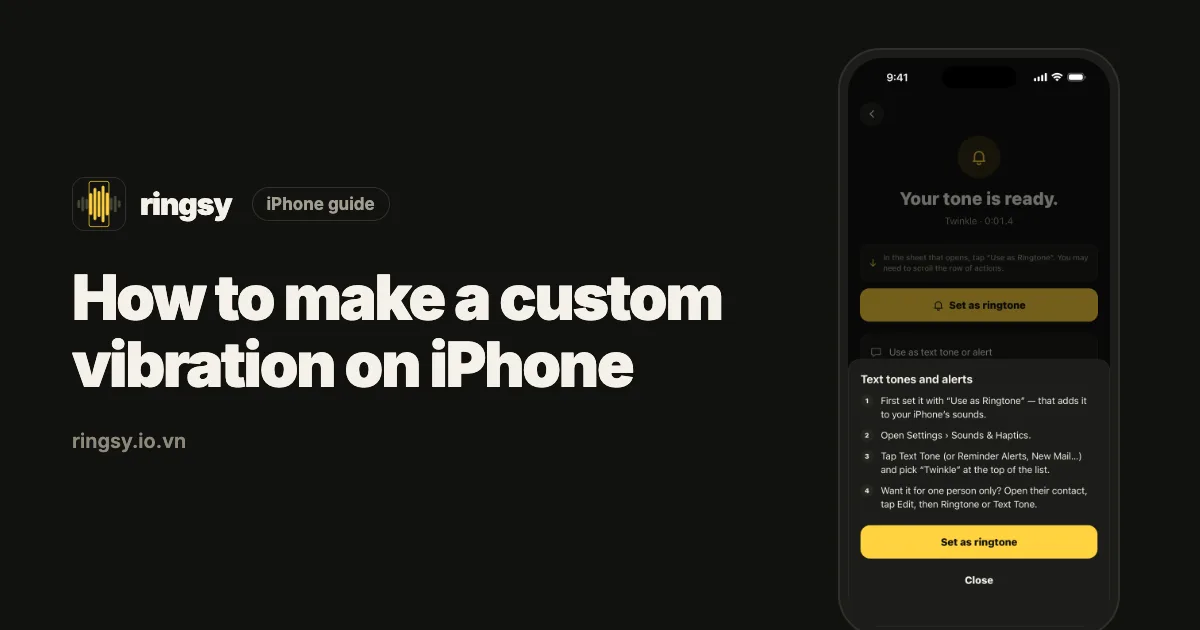
iPhone lets you tap out your own vibration pattern: Settings › Sounds & Haptics › Ringtone › Haptics › Create New Vibration. Tap and hold on the screen to record it, save it with a name, and it becomes the vibration for calls — or for one contact, if you set it there.
A distinct vibration is how you tell who is calling with the phone on silent, in a meeting or in a pocket. Here is how to make one that is actually easy to recognise.
How do I create a vibration?
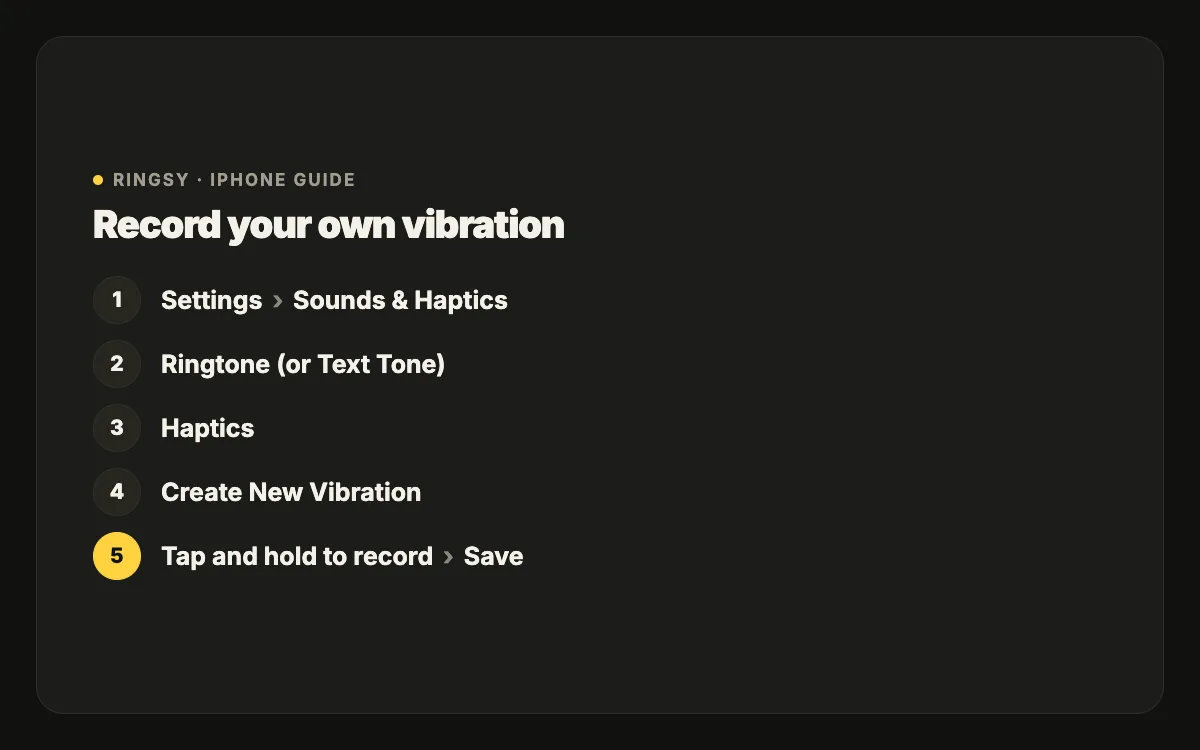
- 1Open Settings › Sounds & Haptics.
- 2Tap Ringtone (or Text Tone, or another alert), then Haptics at the top.
- 3Scroll down to Custom and tap Create New Vibration.
- 4Tap the screen to make short pulses and hold for long ones. Recording stops on its own after a few seconds, or tap Stop.
- 5Tap Play to feel it, Record to try again, then Save and give it a name.
The new vibration is selected for that alert and appears under Custom in every Haptics list.
How do I give one contact their own vibration?
- 1Open the contact in Contacts or Phone and tap Edit.
- 2Tap Ringtone, then Haptics.
- 3Pick a built-in pattern or one of yours under Custom, or create a new one right there.
- 4Go back and tap Done.
Do the same under Text Tone for messages. A contact’s vibration overrides the default, exactly like a contact’s ringtone.
What makes a vibration easy to recognise?
- Rhythm, not length. Two short and one long is easier to tell apart than a long buzz, which feels like every other call.
- Keep it short. A pattern of one or two seconds repeats while the phone rings, so the rhythm comes through several times.
- Leave gaps. Pulses that run together blur into one; a clear pause between them is what your leg notices.
- Make a few, not dozens. Three or four distinct patterns — family, work, everyone else — are easy to learn. Twelve are not.
Can I set a vibration for texts from one person?
Yes, separately from their call vibration. In the contact, tap Edit › Text Tone › Haptics and choose or create a pattern. Messages from that person in the Messages app use it; texts from everyone else keep the vibration set under Settings › Sounds & Haptics › Text Tone › Haptics. Messaging apps such as WhatsApp or Zalo use their own notification vibration, not this one.
Some pattern ideas
- Family: two quick taps, a pause, two quick taps — like a heartbeat.
- Work or a boss: three long pulses.
- Text messages: a single short double-tap. A text vibration plays once, so it should be shorter than a call pattern.
- Everyone else: leave the default, so anything unfamiliar means “someone new”.
Say the pattern in your head as you record it (“da-da … da-da”); tapping to a rhythm is much easier than tapping at random.
Why doesn’t my phone vibrate at all?
- In Settings › Sounds & Haptics, check the Haptics setting (on recent iOS it offers Always Play, Play in Silent Mode, Don’t Play in Silent Mode and Never Play). Never Play turns call vibrations off.
- Settings › Accessibility › Touch › Vibration must be on; with it off, the iPhone doesn’t vibrate for anything.
- A Focus that silences calls also stops their vibration.
- If the Haptics list for a contact is set to None, that person’s calls won’t vibrate.
Can I delete a custom vibration?
Yes. Open any Haptics list, find it under Custom and swipe left on it, then tap Delete. Alerts and contacts that used it go back to the default pattern.
Where Ringsy helps
Vibrations are an iOS feature and Ringsy doesn’t make them — the steps above are all you need. Ringsy covers the sound half of the pair: make a ringtone or text tone from a song, a video’s audio or your own voice, set it, then give the same contact both their sound and their vibration in Contacts › Edit › Ringtone. Ringsy’s export screen includes a short guide for setting a tone for one contact.