Ringtones for online sellers: never miss a customer call
Published October 1, 2026 · 6 min read
If you sell online, most calls that matter come from numbers you haven’t saved: new customers, shippers, suppliers. Set the iPhone so unknown numbers always ring, give your default ringtone the job of “customer”, and give family and friends their own tones so you can tell at once whether to drop everything.
This page puts that together, with the settings that most often silence business calls without you noticing.
Why do customer calls get missed?
- Screen Unknown Callers (iOS 26) or Silence Unknown Callers (iOS 17–18) is on, so new numbers never ring.
- A Focus, often Sleep or Do Not Disturb on a schedule, is still on in the morning.
- The phone is on silent during a livestream and stays that way afterwards.
- The ringtone is the default one everyone around you uses, so you don’t react to it in a market or a busy shop.
Step 1: let unknown numbers ring
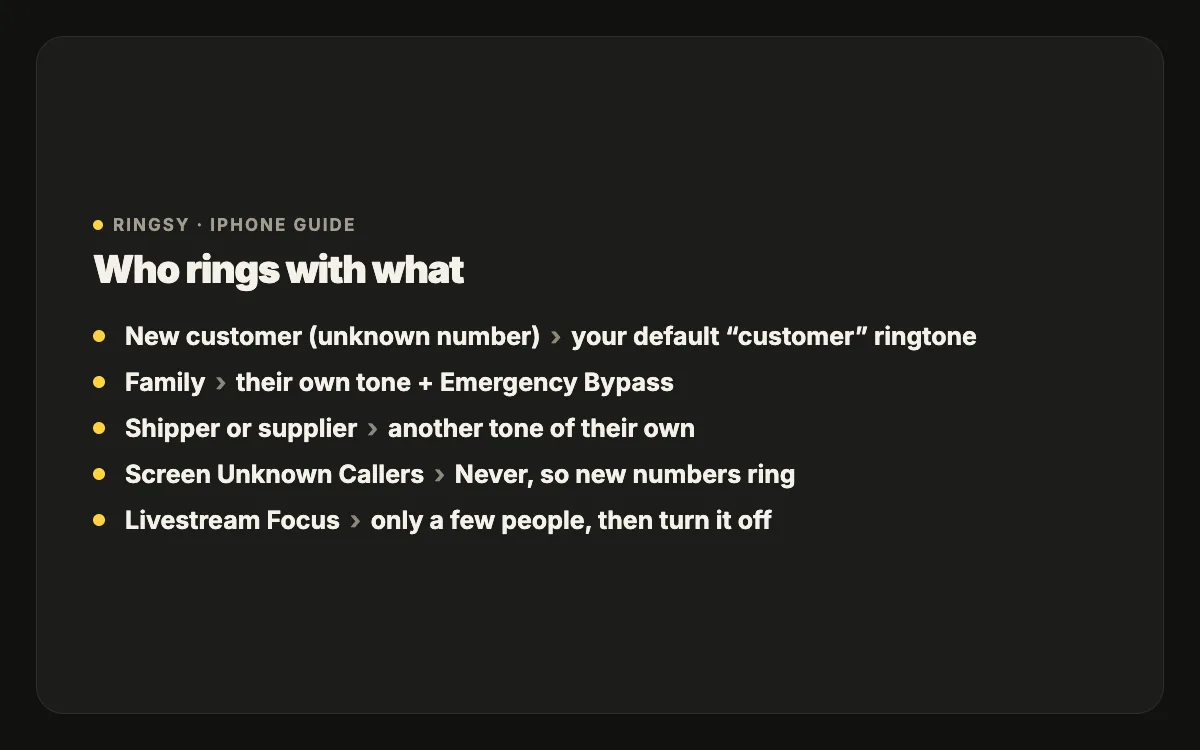
On iOS 26 open Settings › Apps › Phone › Screen Unknown Callers and choose Never. On iOS 17 and 18, turn off Silence Unknown Callers in the Phone settings. Spam calls will ring too; block the obvious ones as they come (in Recents, tap ⓘ › Block this Caller).
Step 2: make the default ringtone your “customer” sound
Every number without its own ringtone plays the default, which means every new customer. Pick something you will notice in your shop or stall: bright, short, recognisable in the first second. Set it in Settings › Sounds & Haptics › Ringtone.
Then give the people who aren’t customers their own sounds: family, close friends, your shipper or supplier, each in Contacts › Edit › Ringtone. Now the sound alone tells you who is calling.
Step 3: a Focus for livestreams
During a livestream on the same phone you probably want silence, apart from a real emergency. Create a Focus (Settings › Focus › +) called Livestream that allows calls only from a few people, and turn it on before you go live. Turn Emergency Bypass on for one or two family members (Contacts › Edit › Ringtone) so they can still reach you.
The important part is turning the Focus off afterwards — or set it to end automatically. A livestream Focus left on all afternoon is how a day of orders goes to voicemail.
Step 4: text tones for order messages
SMS from shipping companies and banks use your Text Tone. A short, distinct text tone that is different from your ringtone helps you hear an order confirmation or payment message over shop noise. Messaging apps such as Zalo or Messenger use their own sounds, which you change inside those apps if they offer it.
A two-minute morning check
- No Focus showing in Control Center, and Silent mode off.
- Ringer volume up (turn Change with Buttons off so it stays there).
- Bluetooth earbuds disconnected if they are in your bag rather than your ears.
- Call yourself from another phone once after changing any of these, to hear what a customer’s call sounds like.
A shop jingle as your ringtone
Some sellers like a ringtone that is part of the brand: the shop’s name said in their own voice, or a short jingle. If you make one, keep it under 30 seconds, put the recognisable part in the first second, and record it in a quiet place so it is clear on a phone speaker. Use only music you made or have the rights to — if a customer hears it during a call or a livestream, it is effectively public.
Where Ringsy helps
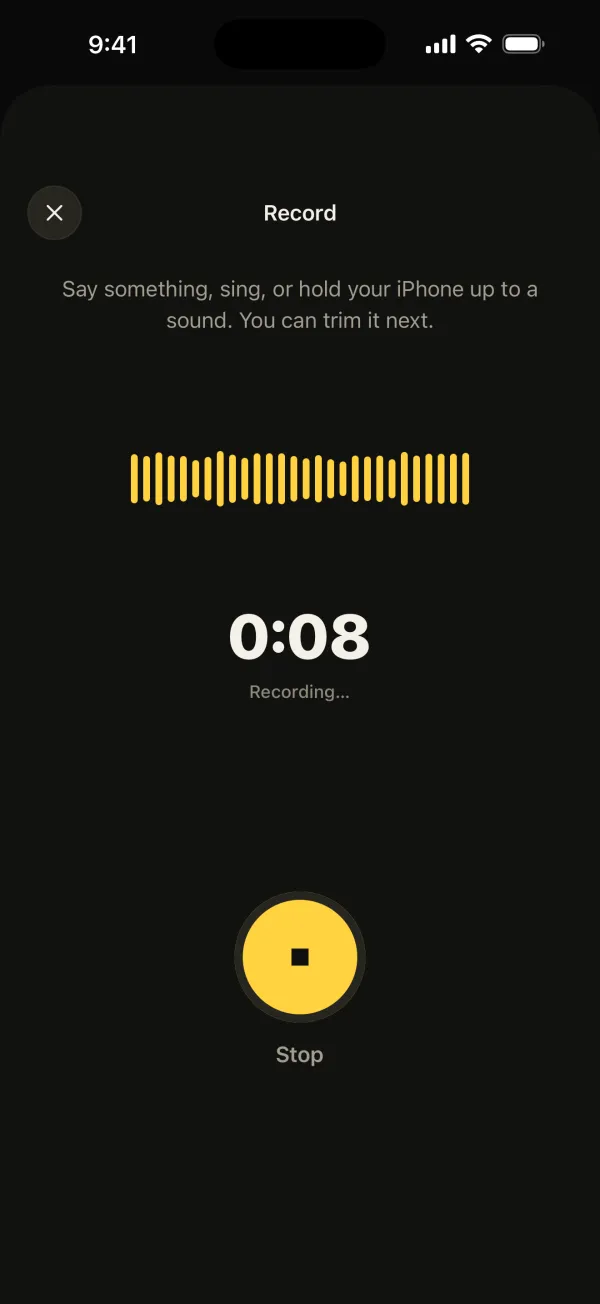
Ringsy is handy for the sound part: record your shop’s name or a short jingle (up to 60 seconds, trimmed to under 30), or start from one of Ringsy’s original sounds, then even out the volume so it is loud on the phone speaker and set it as your ringtone. A second, different tone for family takes a minute more. The recording stays on your iPhone; nothing is uploaded.