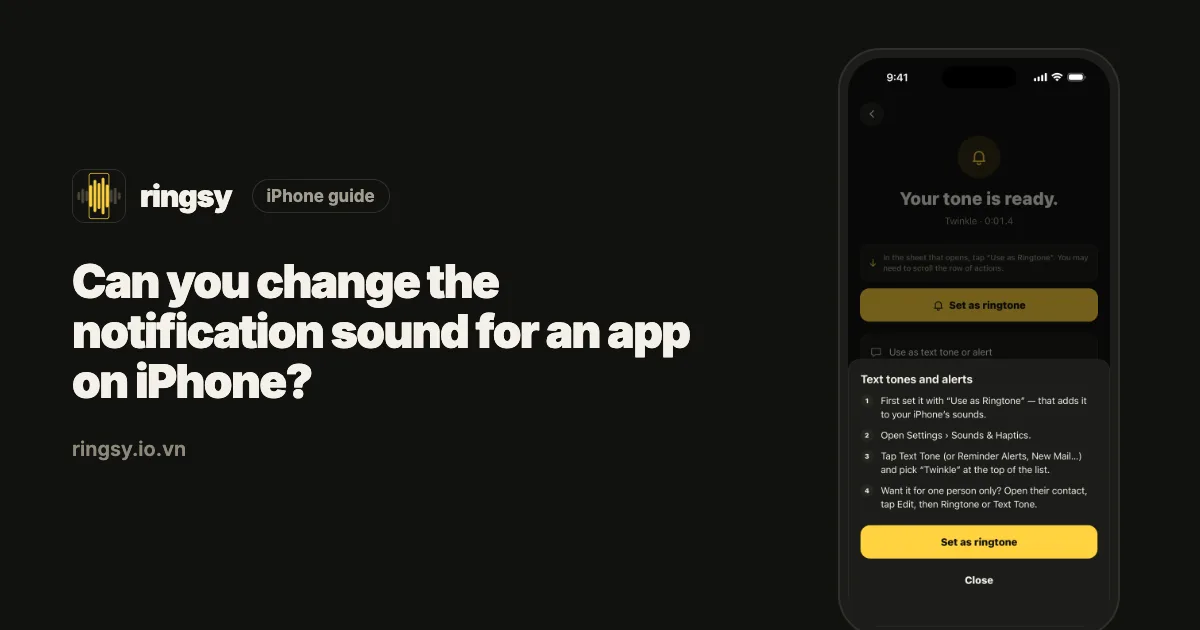
Can you change the notification sound for an app on iPhone?
Published October 1, 2026 · 6 min read
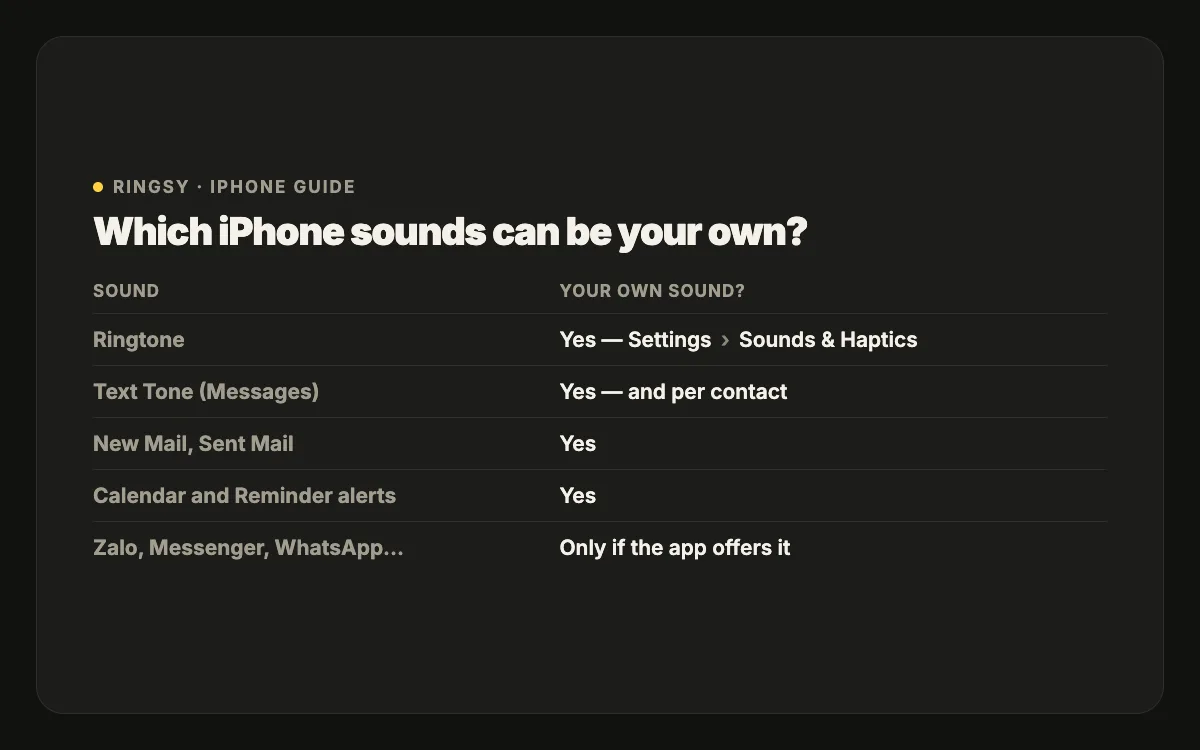
Only partly. iOS lets you choose the sound for Apple’s own alerts — ringtone, Text Tone (Messages), New Mail, Calendar and Reminder alerts — in Settings › Sounds & Haptics. A third-party app’s notification sound is chosen by that app, so you can only change it if the app has its own sound setting.
That surprises a lot of people, so this guide lists what is changeable, what isn’t, and the tricks that get you closest.
Which sounds can I change in Settings?
Settings › Sounds & Haptics lists every sound iOS lets you set: Ringtone, Text Tone, New Voicemail, New Mail, Sent Mail, Calendar Alerts, Reminder Alerts and AirDrop. Each has its own list of tones and its own vibration (Haptics). Text Tone is the sound for iMessage and SMS in the Messages app.
Any custom tone you have added — a ringtone you made, for example — shows at the top of every one of these lists, so a short sound you made can be your text tone or reminder alert.
Why can’t I change the sound for Zalo, Messenger or WhatsApp?
On iPhone, a notification’s sound is part of the notification the app sends. iOS lets you turn an app’s sounds on or off (Settings › Notifications › the app › Sounds), but not swap in a sound of your choice. If the app offers a choice, it is inside the app’s own settings, usually under Notifications, and limited to the sounds the app ships.
So for a messaging or banking app, look in the app first. If there is no sound option there, iOS has none either.
What about calls in messaging apps?
Calls through apps that use Apple’s calling interface — WhatsApp and many others — may ring with your iPhone ringtone or with the app’s own sound, depending on the app. If an app has a ringtone setting, it is inside the app. FaceTime always uses your iPhone ringtone and contact ringtones.
Workarounds that do work
- Turn the app’s sound off and let a distinct vibration or the banner do the work: Settings › Notifications › the app › Sounds off.
- Use Messages for the people who matter: SMS and iMessage use your Text Tone, and each contact can have their own (Contacts › Edit › Text Tone).
- Give an app’s notifications less noise by using a Focus that only allows certain apps, so the sounds you do hear mean something.
- Use Shortcuts for app moments: a personal automation can play a sound when a particular app is opened (not when it gets a notification) — handy as a cue, not a replacement for the app’s alert.
Why does a notification make no sound at all?
- The app’s Sounds switch is off in Settings › Notifications › the app.
- The app is in a Scheduled Summary: summarised notifications arrive quietly at set times instead of with a sound.
- A Focus is on and the app isn’t allowed in it.
- Silent mode is on. Notification sounds follow the ringer; in Silent mode you only get vibration.
Making a good alert sound
- Short: one to two seconds. An alert plays in full each time, so anything longer is annoying by the tenth message.
- Sharp start: a click, a pluck or a bell, with the attack in the first tenth of a second.
- Different from your ringtone, so you know at once whether it is a call or a message.
- Not too loud in a quiet room. Test it at night volume before setting it.
Where Ringsy helps
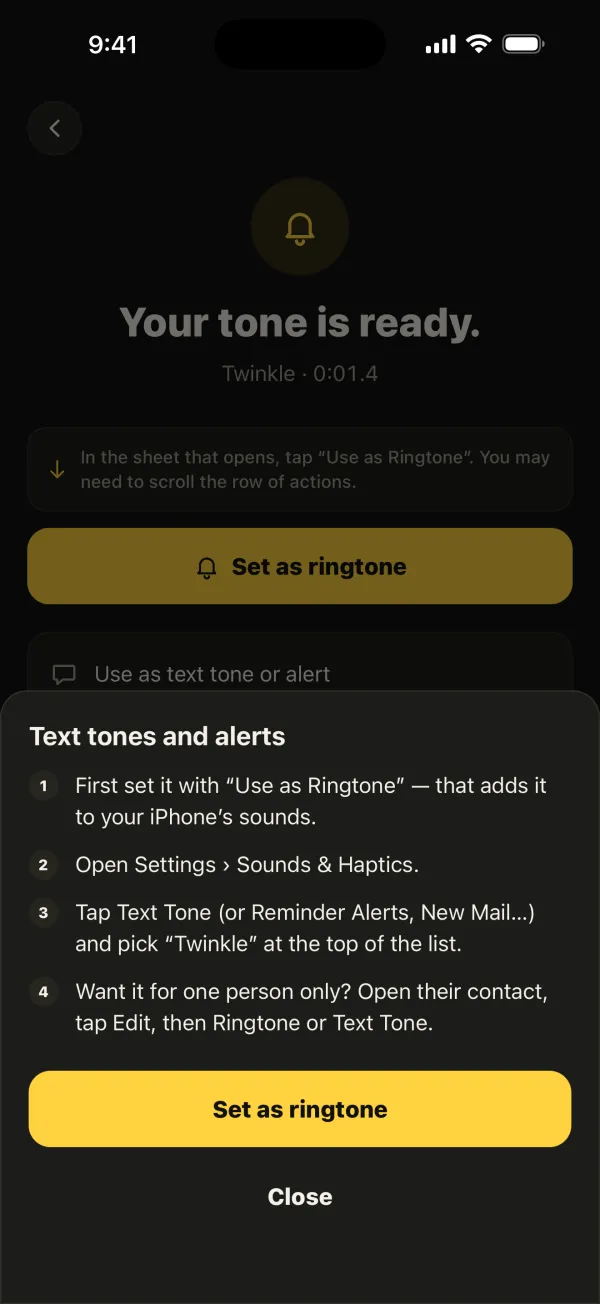
Ringsy can’t change a third-party app’s notification sound — iOS doesn’t allow any app to. What it does is make the sounds iOS does let you change: cut a one-second text tone from a song, a recording or a video, or start from one of Ringsy’s original short alert sounds, then add it to your tones. Its export screen has a step-by-step “Use as text tone or alert” guide for Text Tone, New Mail, Calendar and Reminder alerts.